Submit a Public Comment
A public comment can be submitted against a case, a company, or as a miscellaneous comment.
Once a public comment is submitted, it will route to COS PIO users for an initial review. Once accepted or rejected, it will route to the Legal Supervisor for further review.
Divisions and Roles authorized to Submit or Review Public Comments
| Division | Eligible Roles | Function in Public Comment |
|---|---|---|
| All Division | Staff and Supervisor roles of all divisions | Can file a new public comment |
| Chief of Staff Division | COS PIO users | Initial review of public comment |
| Legal Division | Legal Supervisor | Further review of public comment, can send for re-review to the COS PIO user |
- Sign In
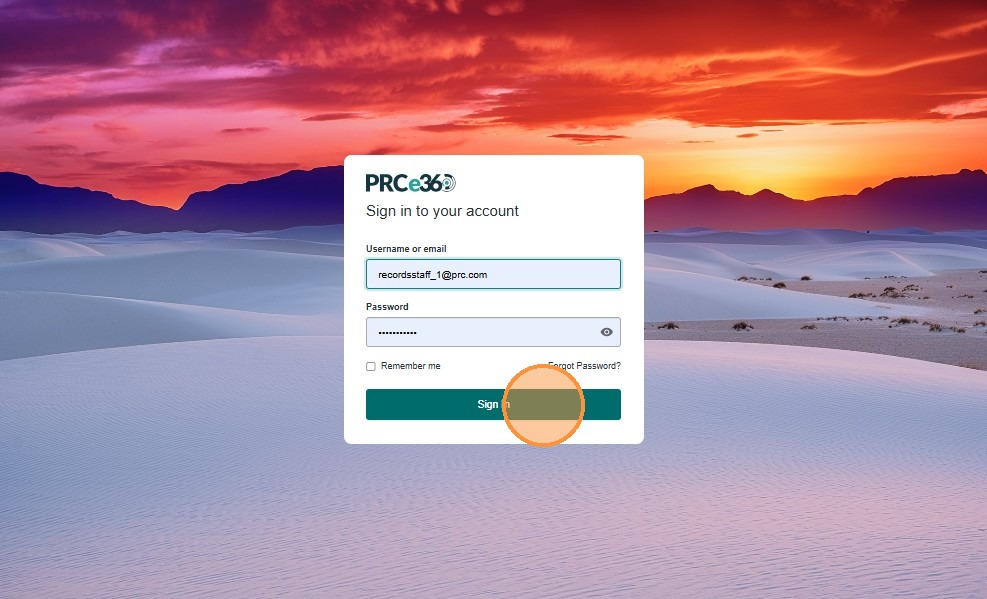
- Enter login credentials.
- Click on Sign In.
Navigate to Dashboard - Comments
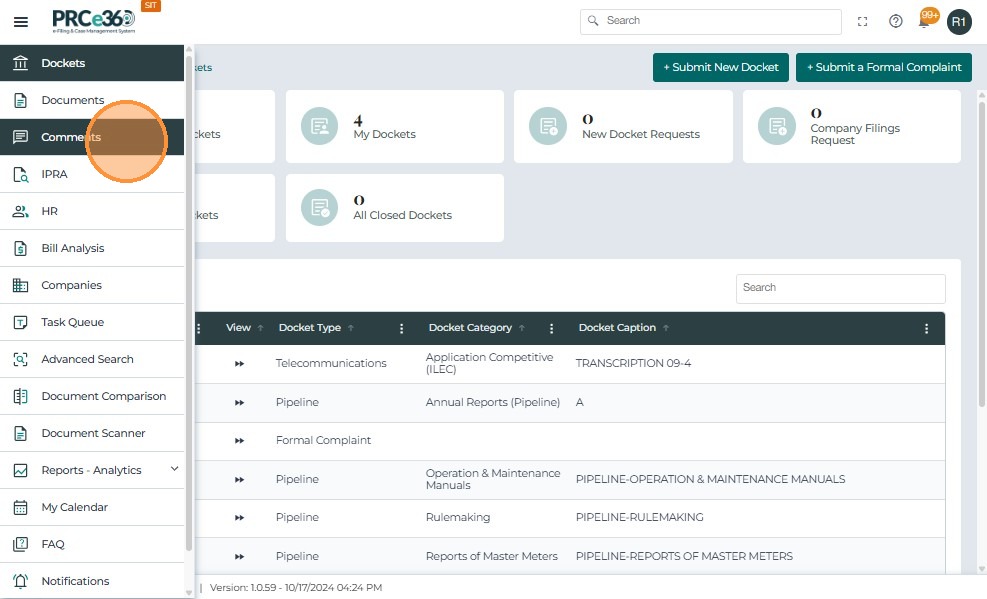
- Click on the side menu.
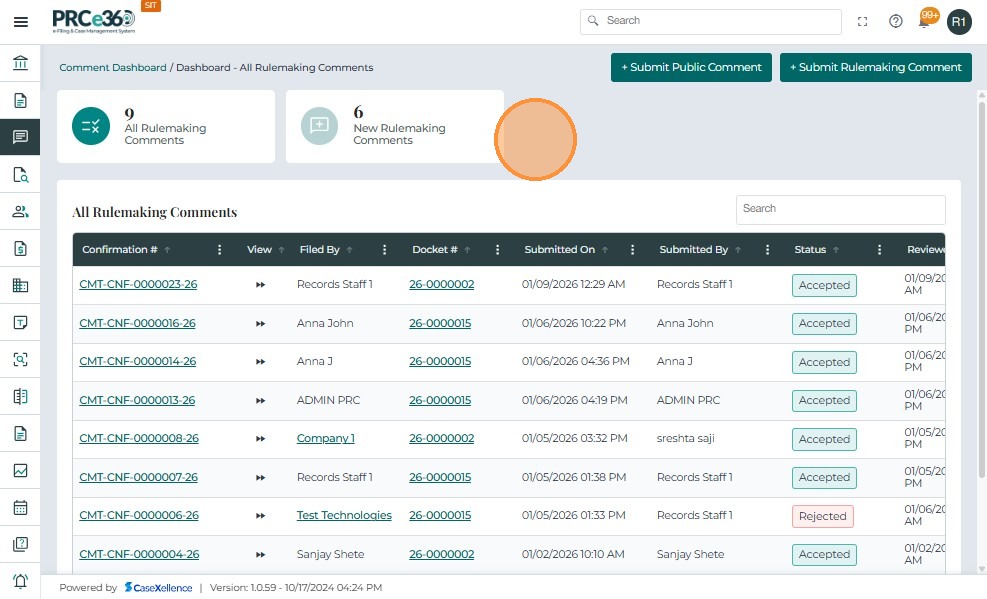
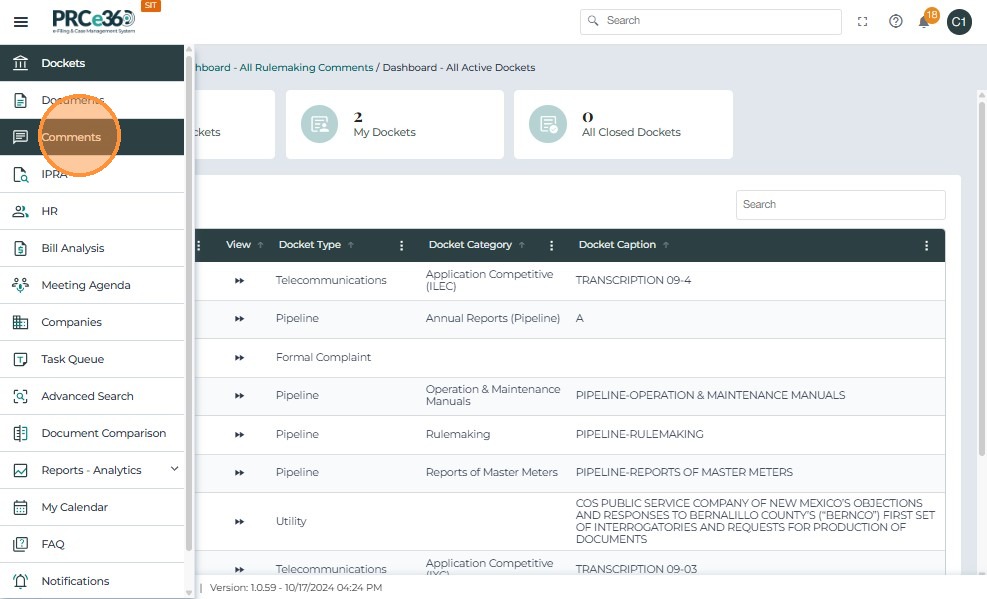
- Click on the Comments tab to go to the Comments dashboard.
Submit Public Comment
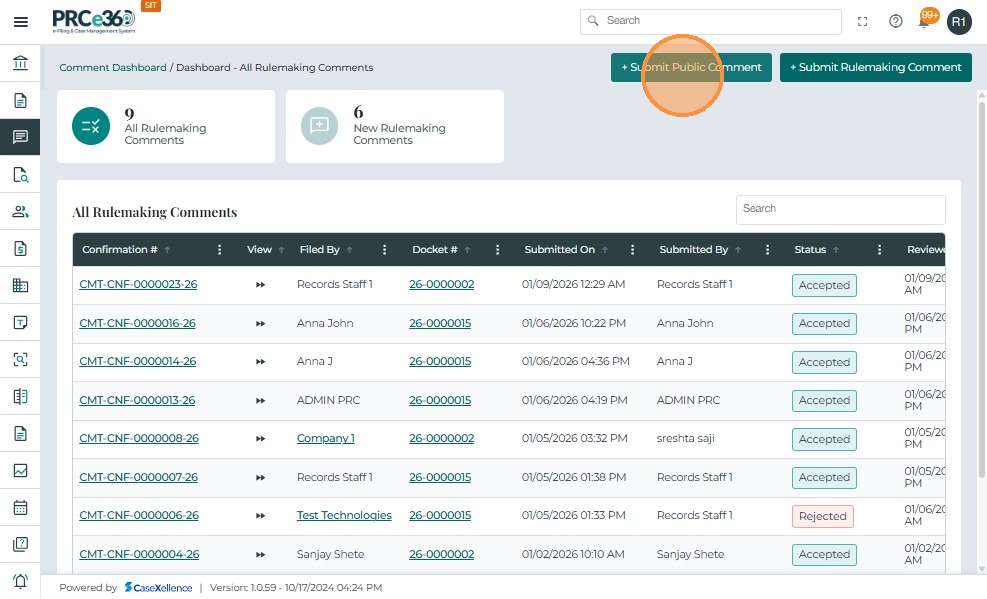
- In the top right of the Comments dashboard, click on the +Submit Public Comment button.
- This button is visible to all divisions.
Enter details of Public Comment
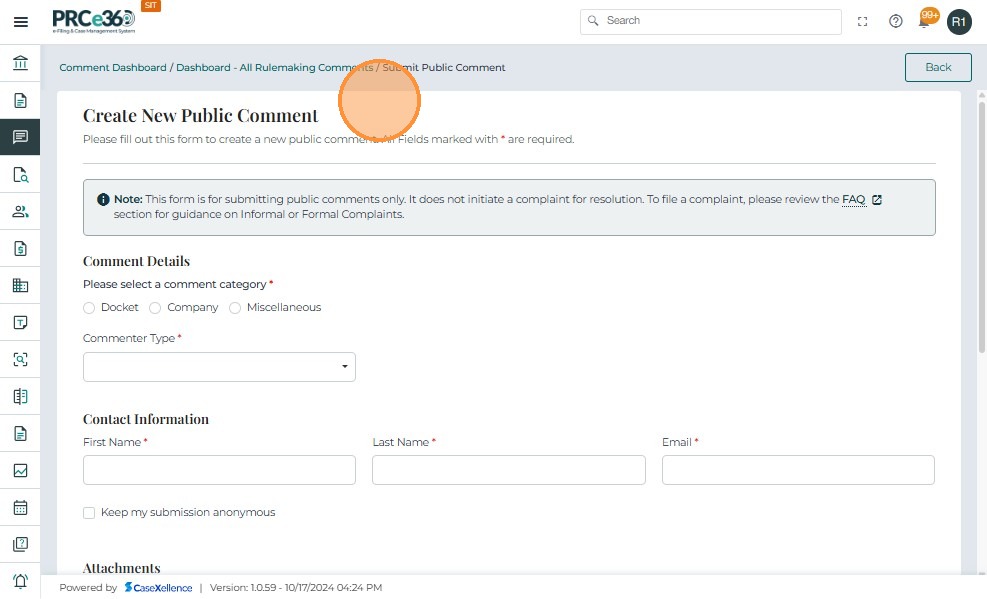
- A form will appear to enter the details of the public comment.
Comment details
-
Enter the comment details.
-
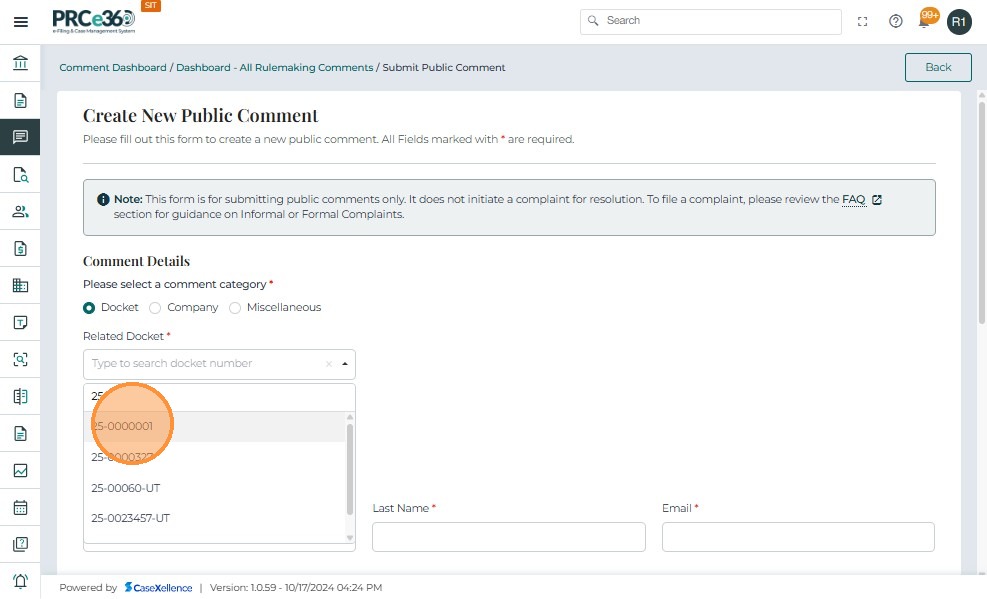
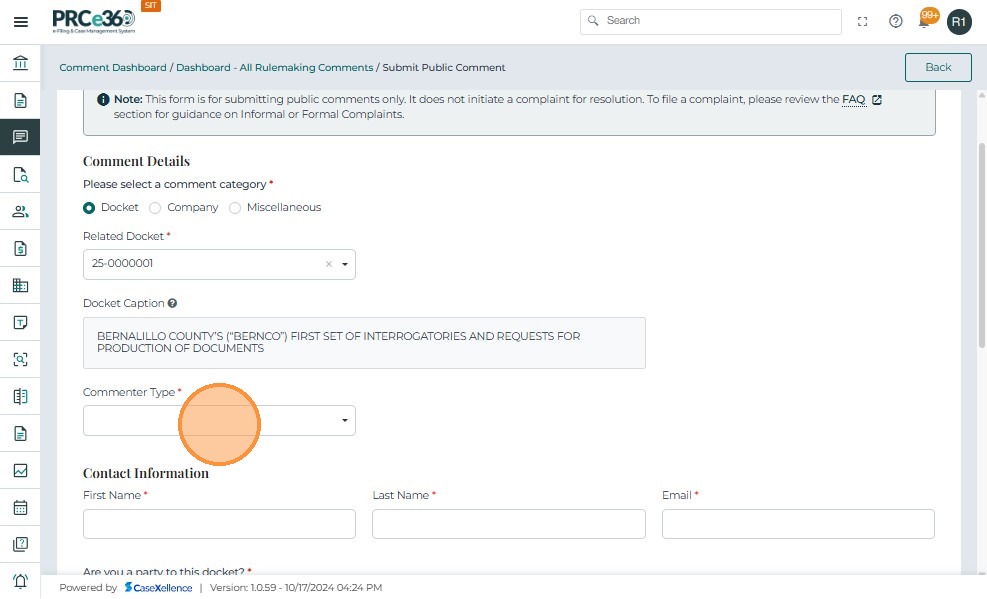
If it is against a docket, select the docket typ by searching for the dokcet number
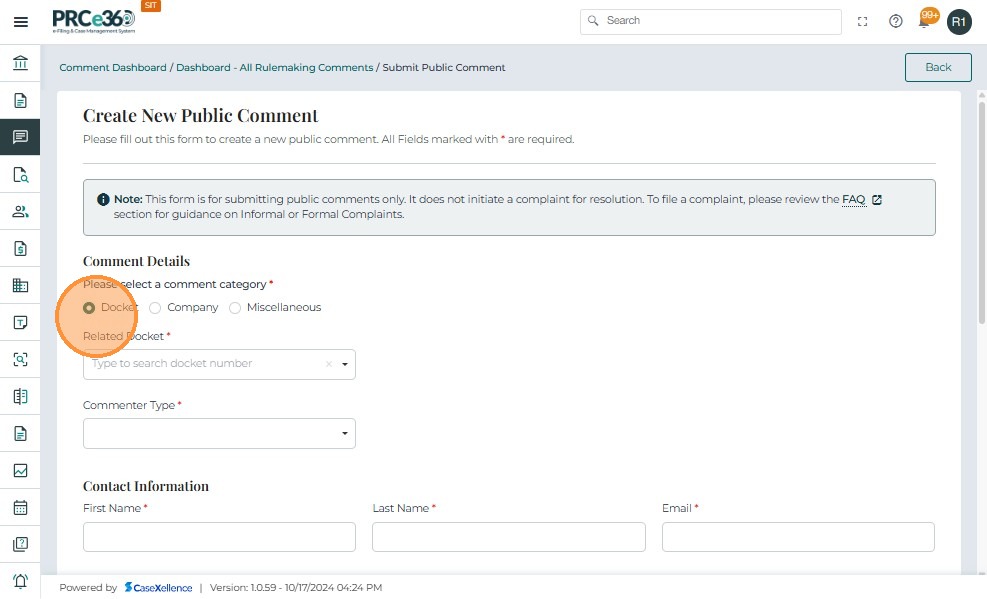
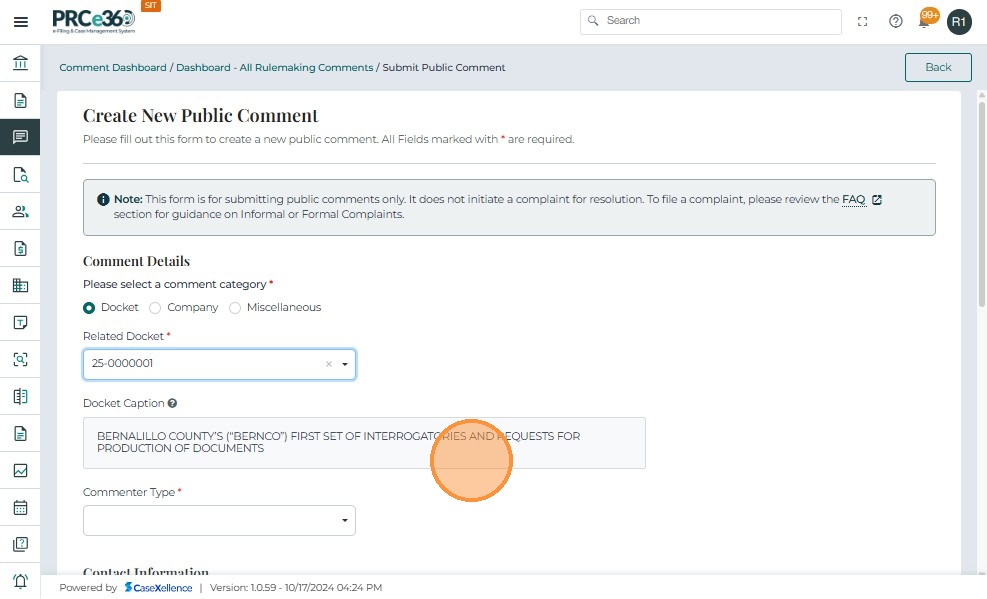
- The docket caption will auto fill accordingly.
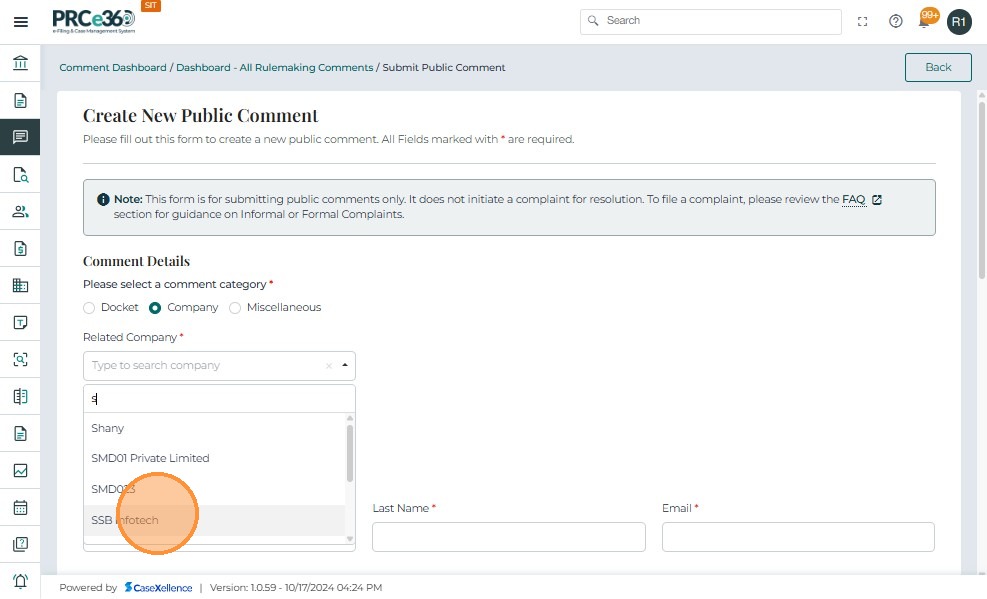
- If it is against a company, select the company by searching the company name
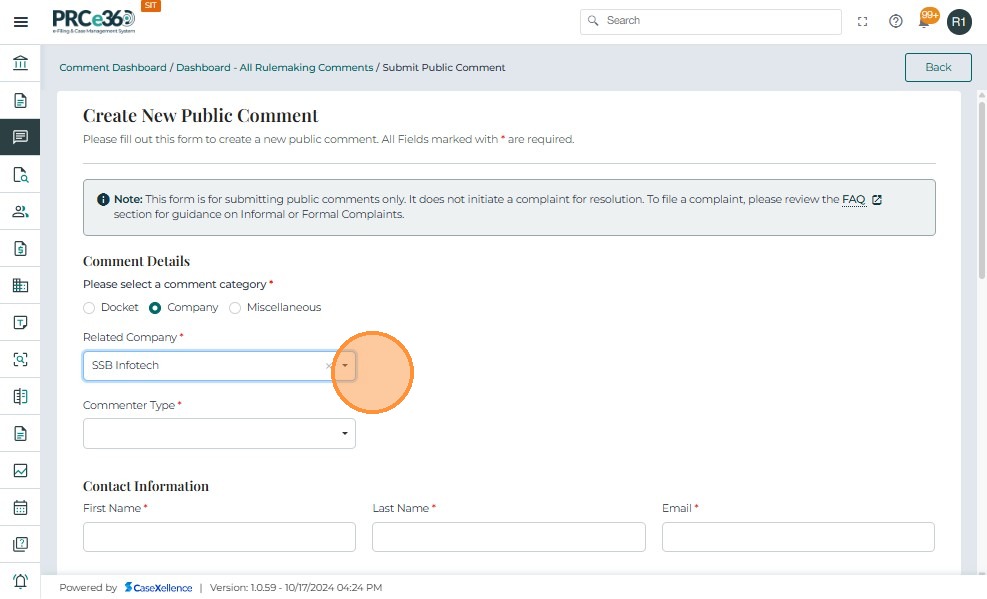
Note: If the company is not registered, the user must first register the company. To learn more, see Register New Company.
- If it is miscellaneous, select the miscellaneous option and proceed
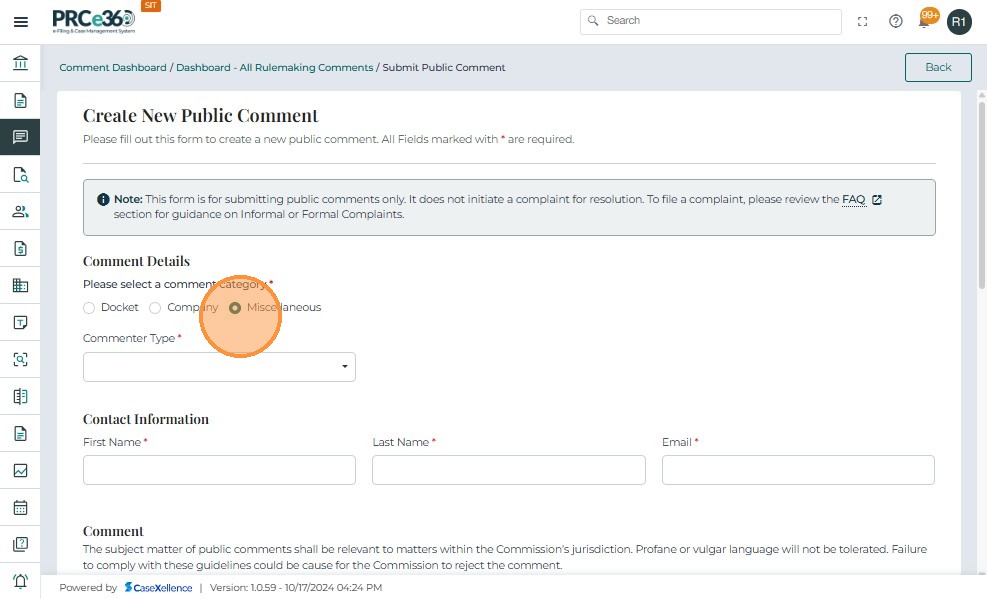
-
The details of the user will be autofilled for contact information
-
Enter the commentor type from the dropdown.
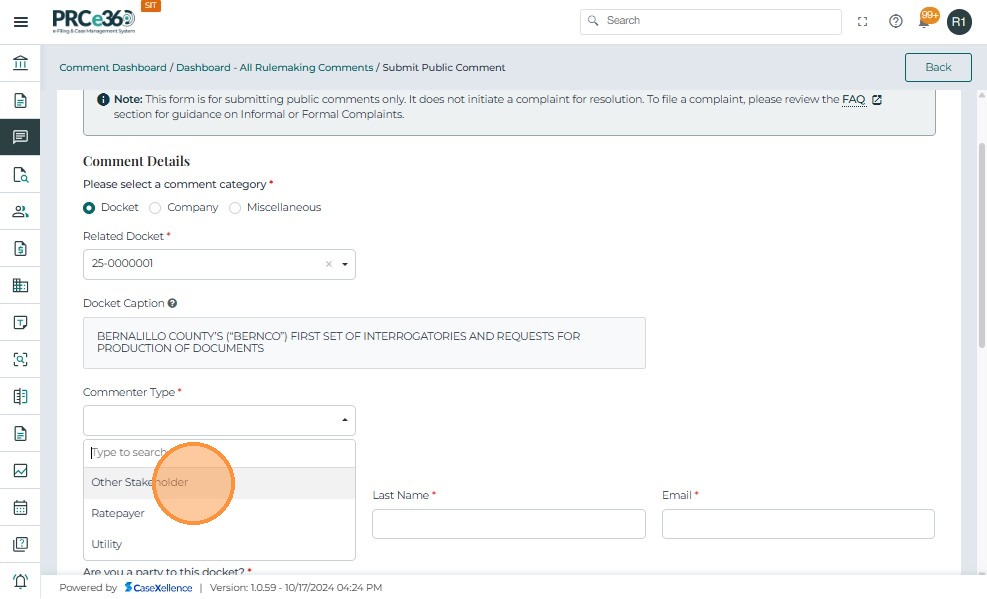
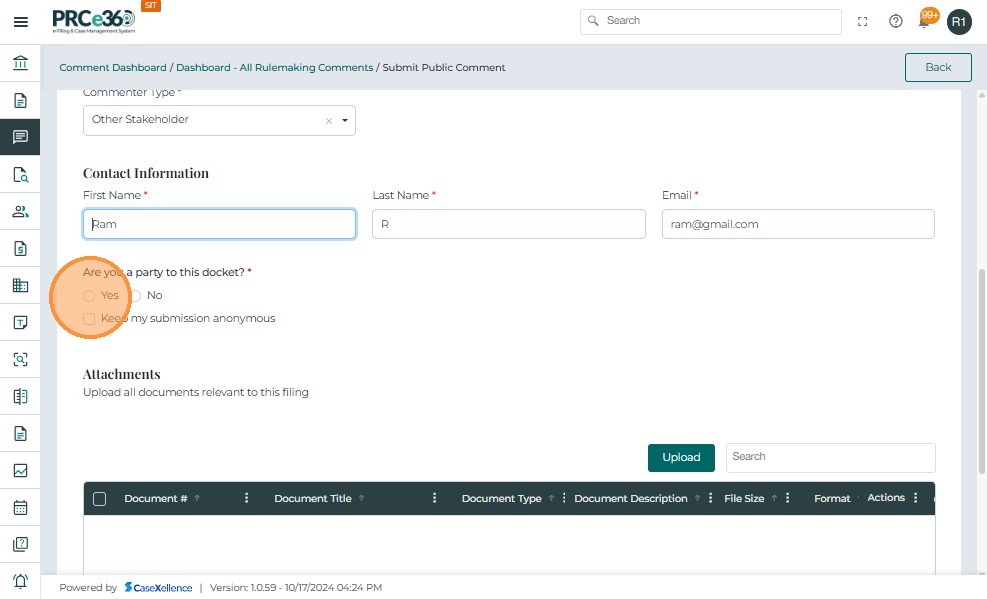
- Enter the contact information.
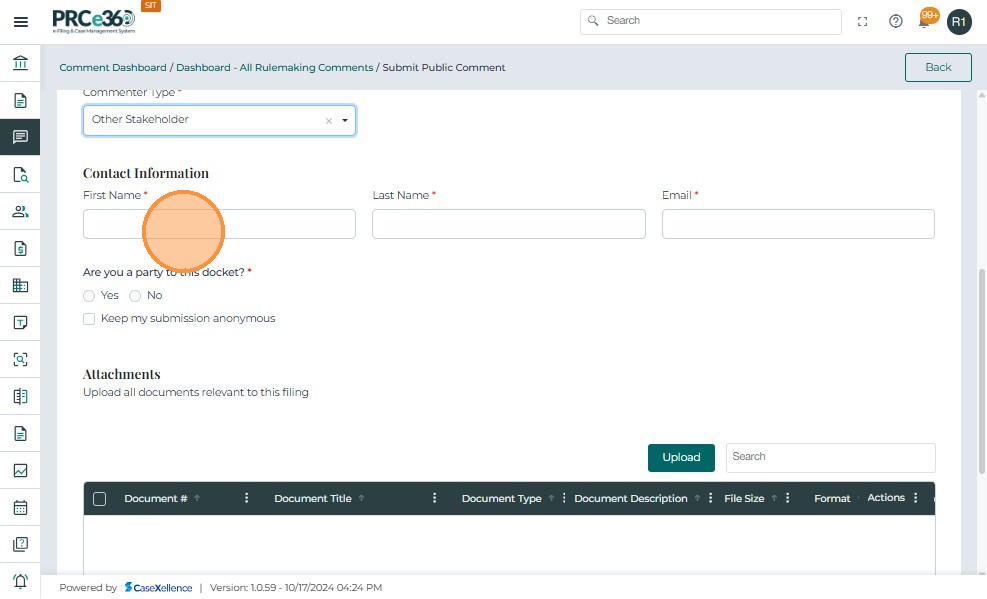
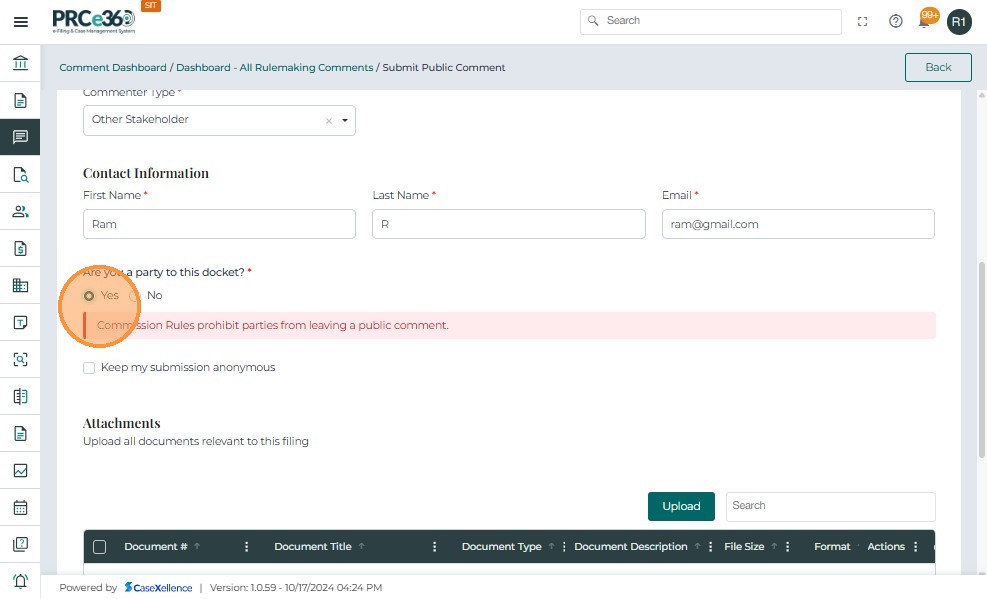
- If you are a Part to this docket, Select Yes.
- If you are not a part of the docket , Select ** No**.
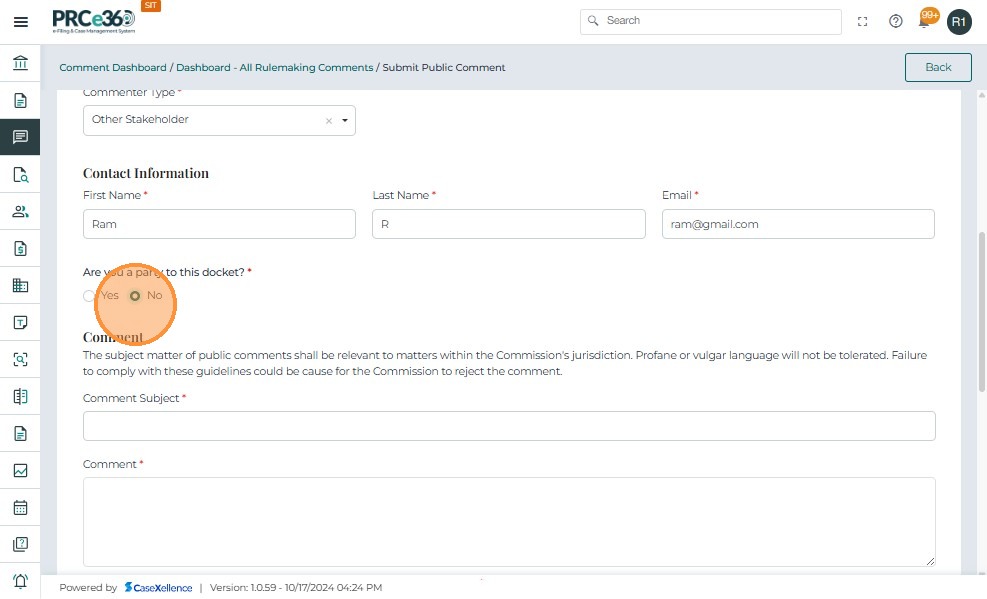
Comment
- Enter the public comment details, including the subject of the comment and the comment text.
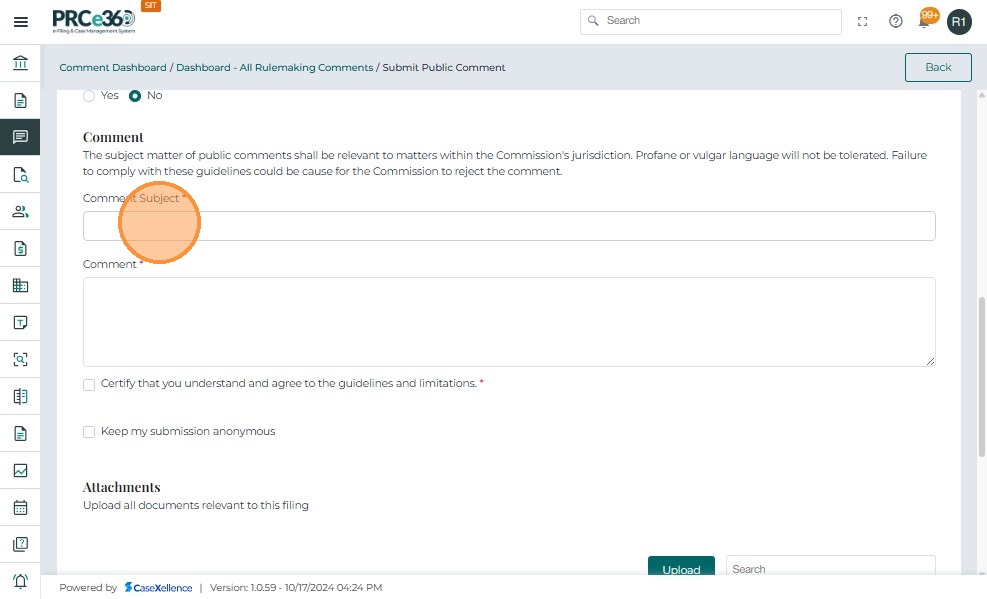
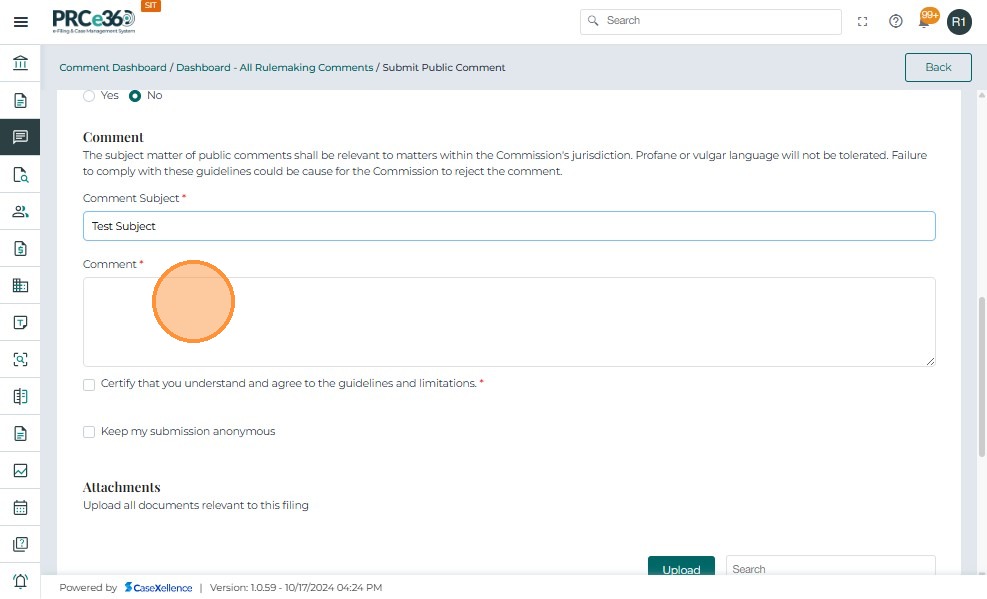
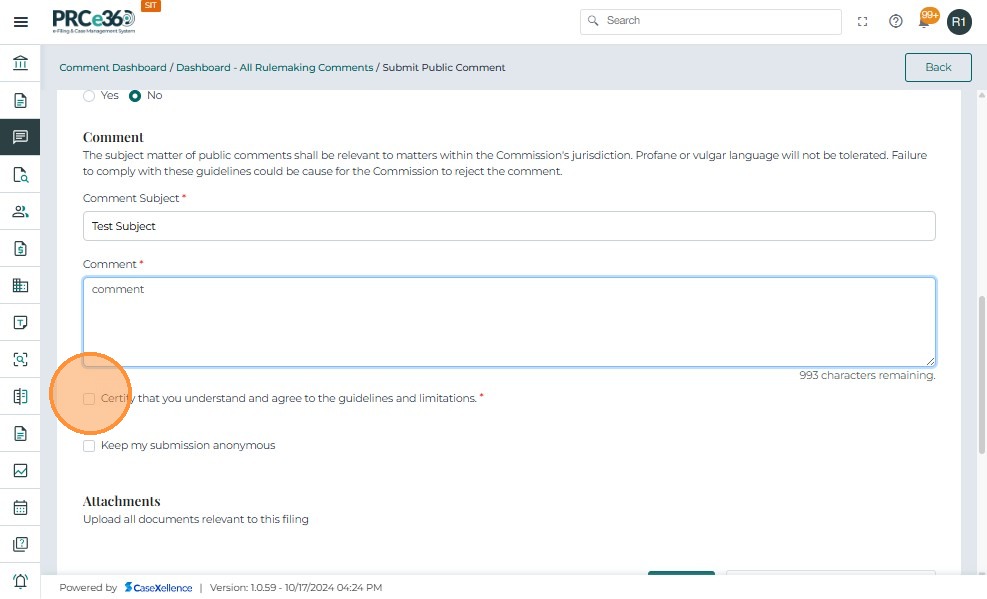
- The user must check the box to affirm that the guidelines and limitations are understood
- The user also has the option of keeping the submission of the public comment anonymous
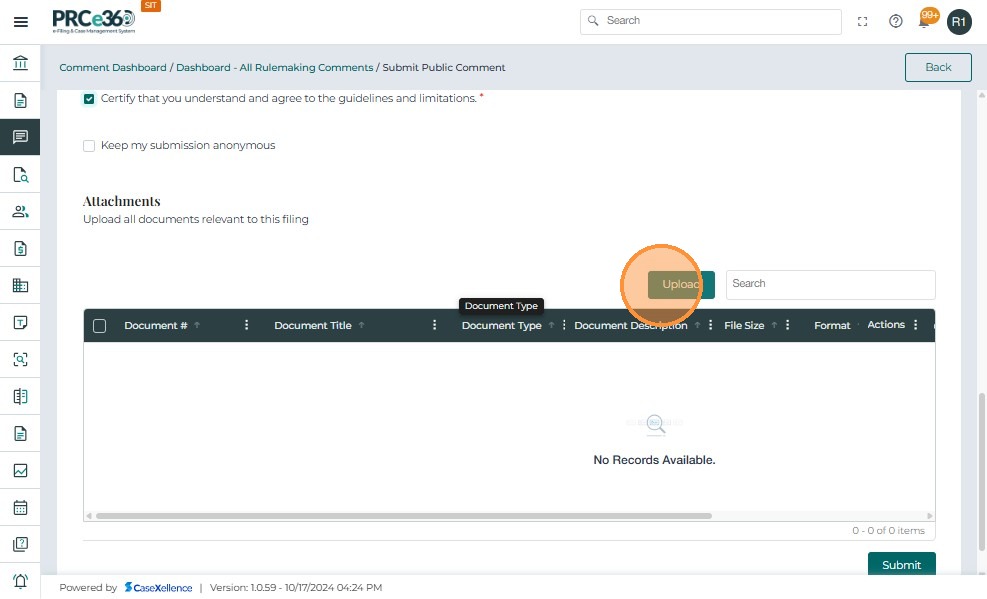
Attachments
- Click on the Upload button to upload any necessary documents.
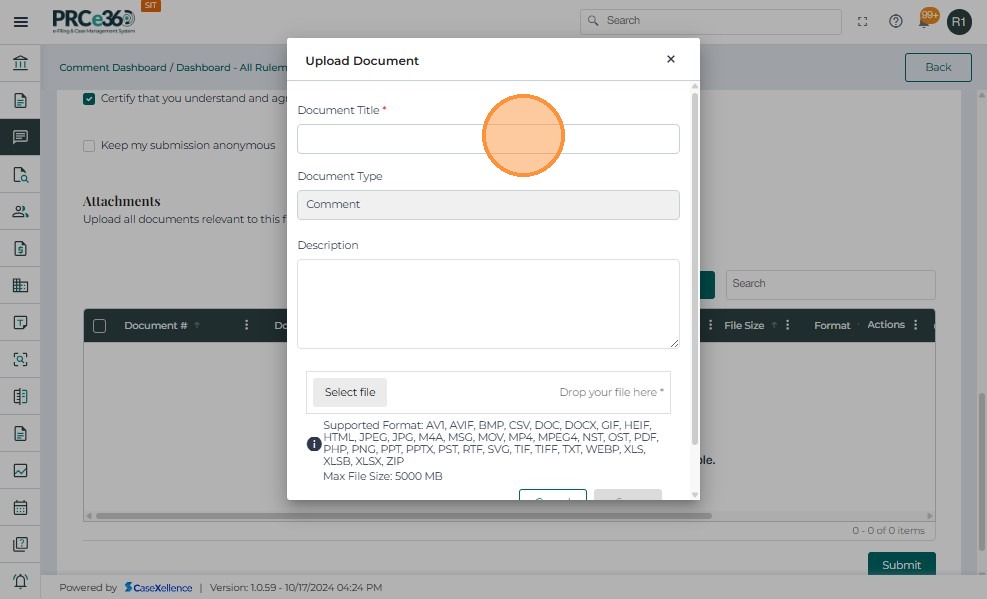
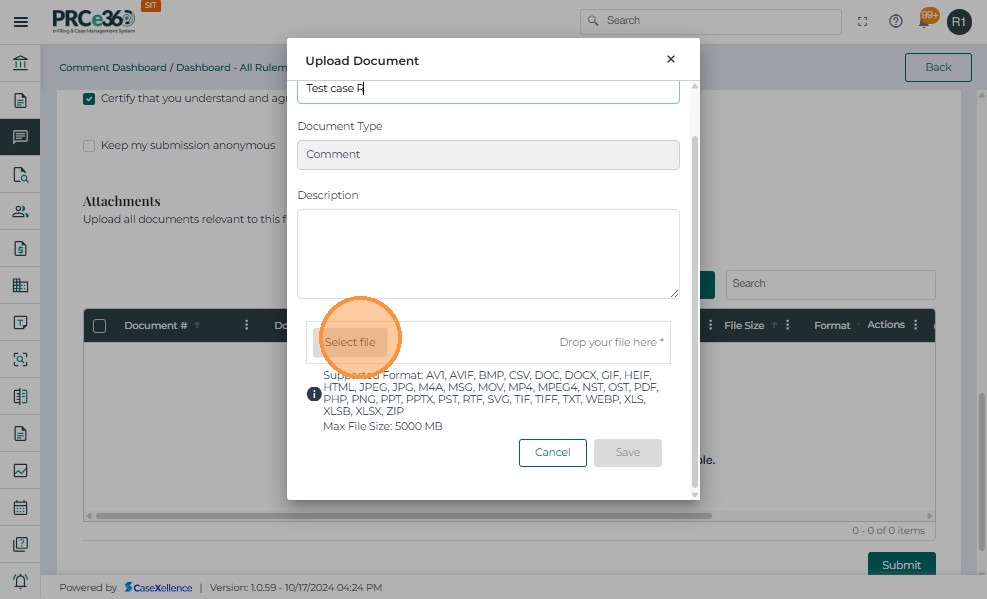
- A pop-up will appear to enter the details of the document.
-
For documents to be uploaded, complete the following fields in the table:
- Document Title – Provide a clear title.
- Document Type – Select from the dropdown (e.g., Petition, Exhibit, Order, Supporting Document).
- Document Description – Enter a brief description summarizing the contents.
- File Size – Displays automatically after upload.
-
Click on Select File to select the document to upload.
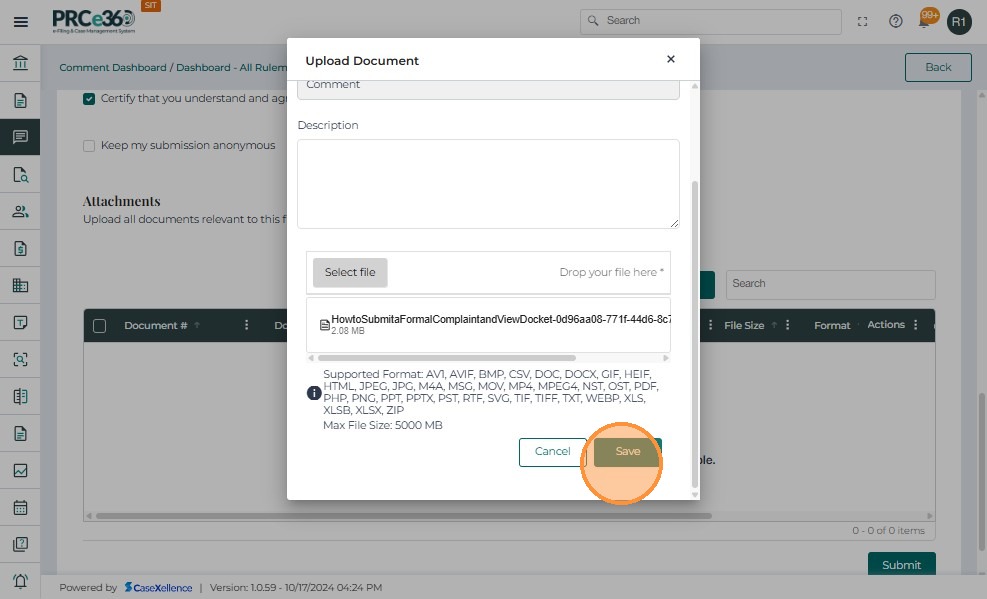
- Click on Save to upload the attachment.
- Once uploaded, it will appear in the documents grid.
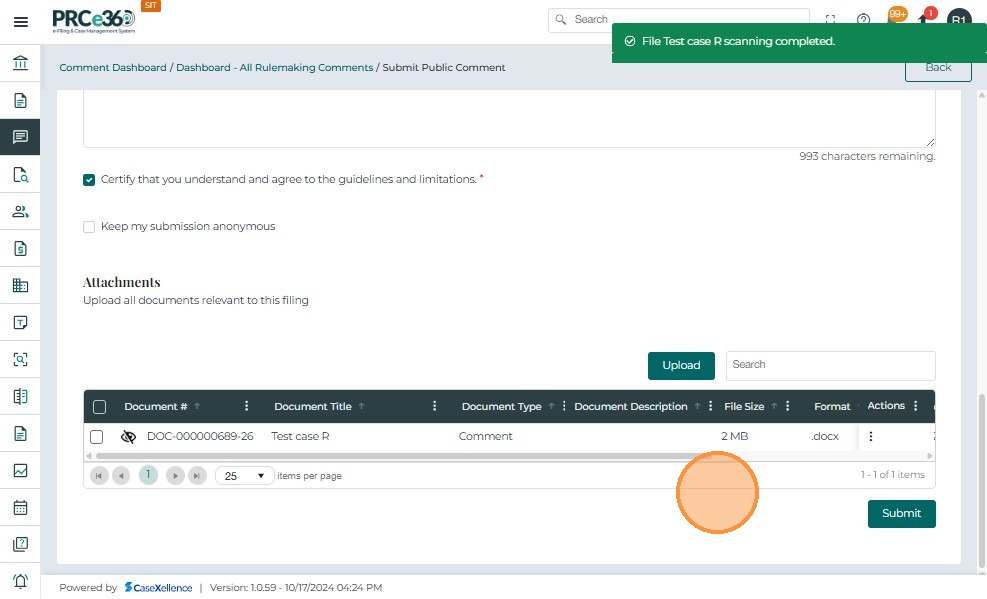
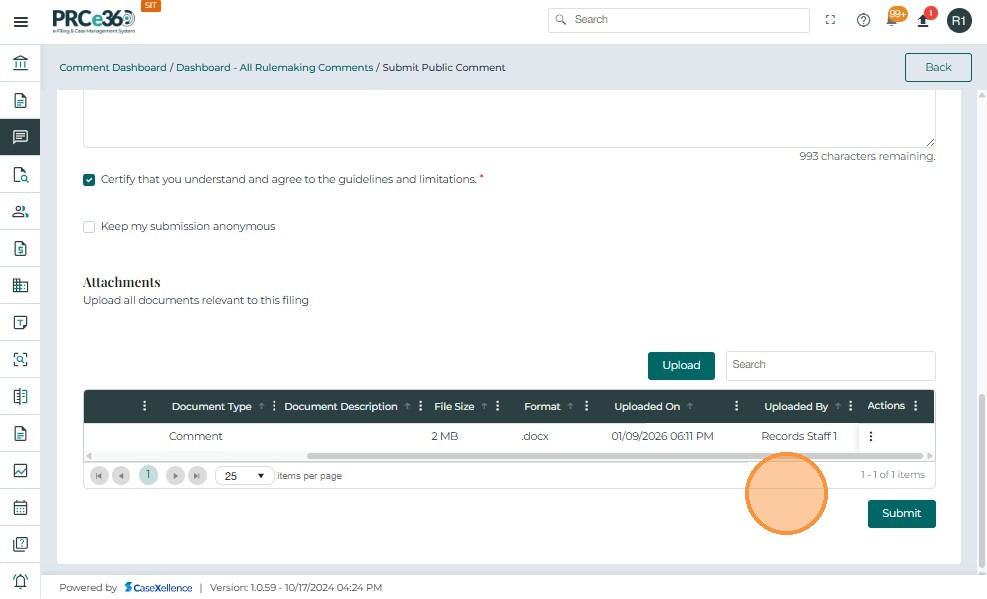
- This grid includes columns like:
- Document # - A unique reference number assigned to the document
- Document Title - The name of the document
- Document Type - The document type that was selected
- Document Description - The description that was entered for the document
- File Size - File size of the uploaded document
- Format - The format of the uploaded document
- Uploaded On - The date and time the document was uploaded
- Uploaded By - The name of the person or role that uploaded the document
Actions tab
-
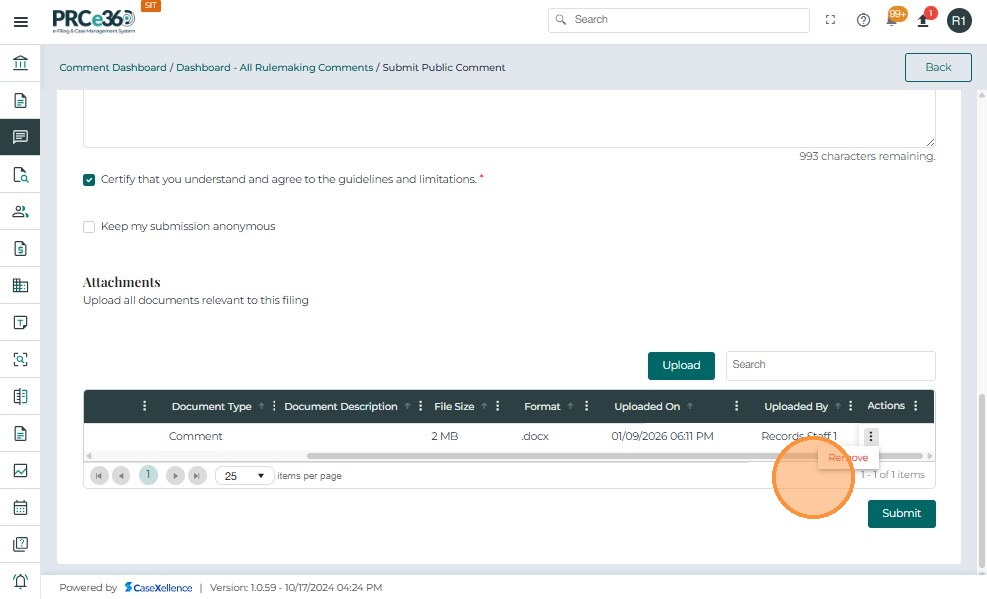
The Actions tab (three dots) will give the option to remove an uploaded attachment.
-
Click on Remove if the uploaded document is to be removed.
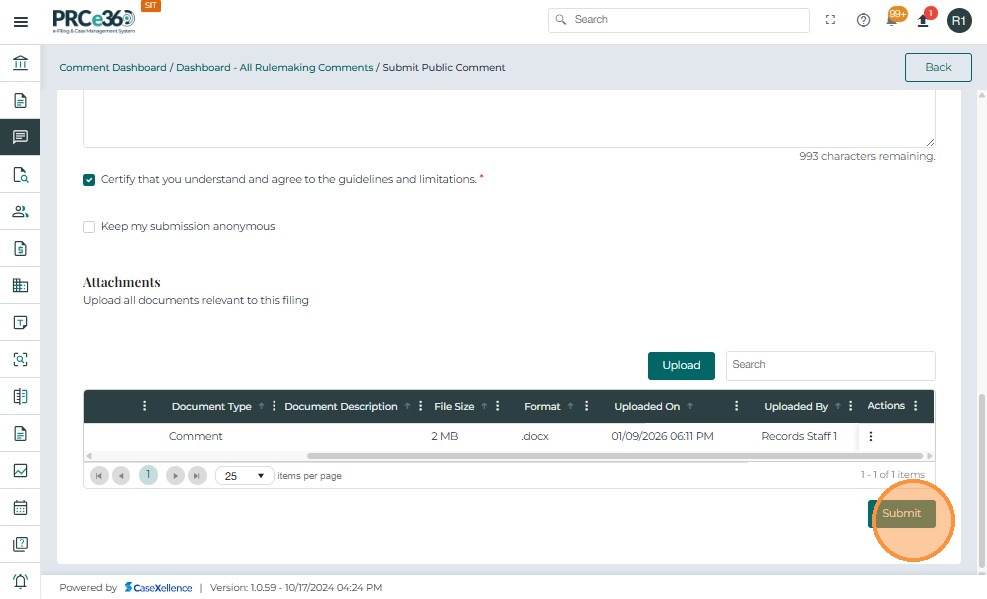
- Click on Submit to submit the public comment.
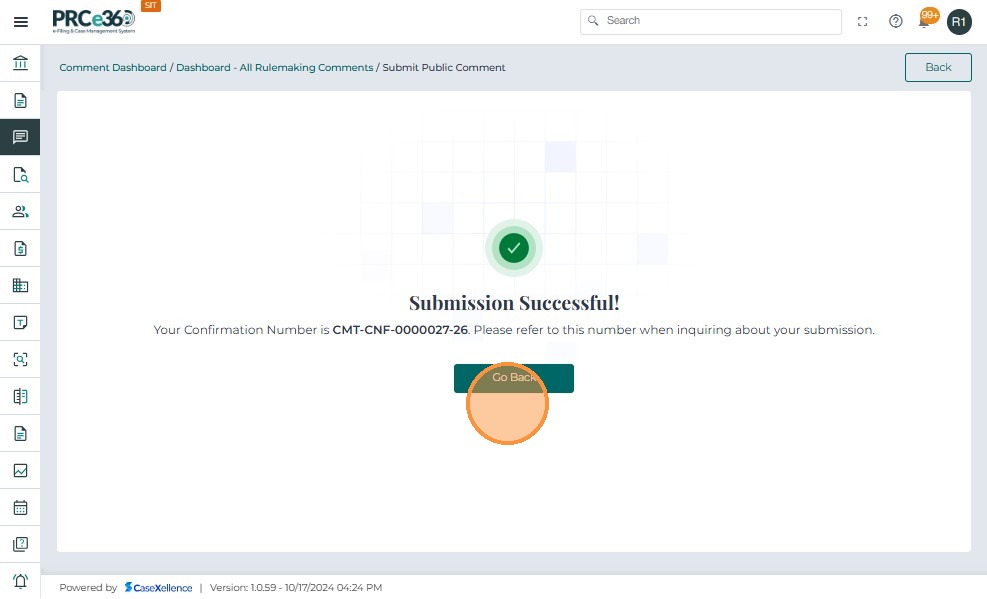
- Once submitted, a message will appear confirming the success of the submission.
COS PIO user
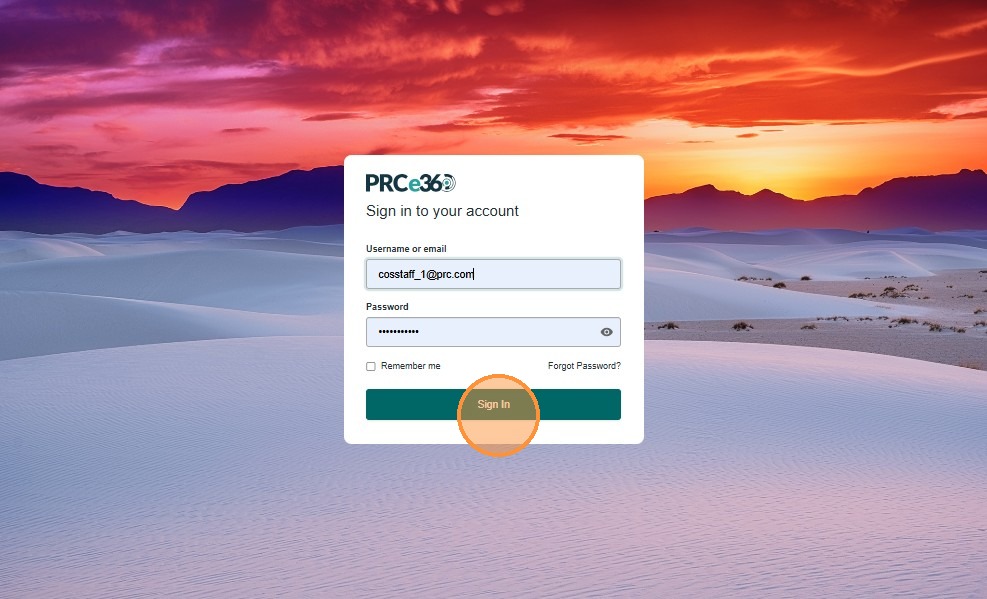
- Log in as a COS PIO user.
- Navigate to the Comments Dashboard
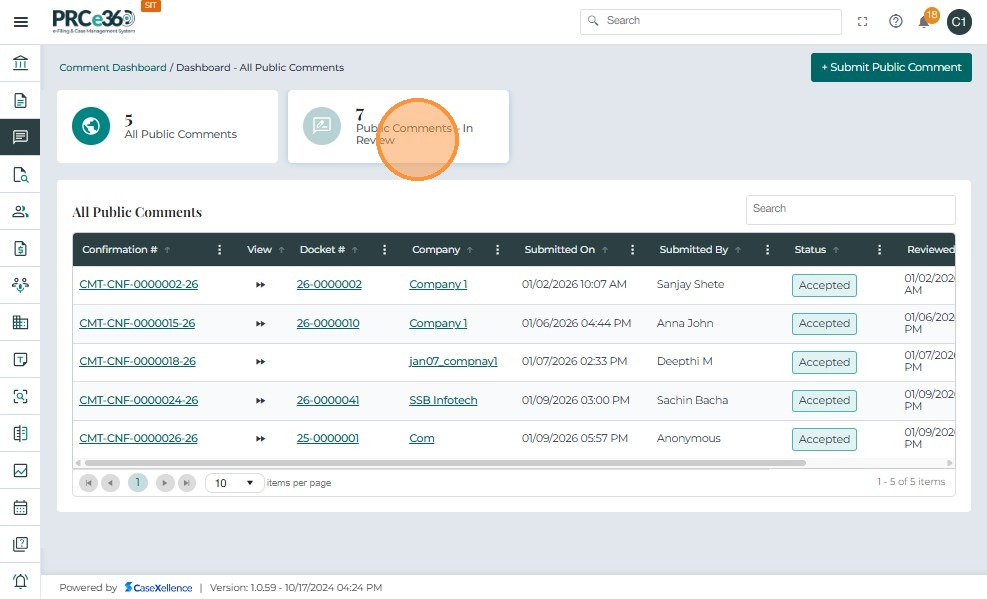
- For COS PIO users, the submitted public comment will be listed in the Public Comments - In Review queue.
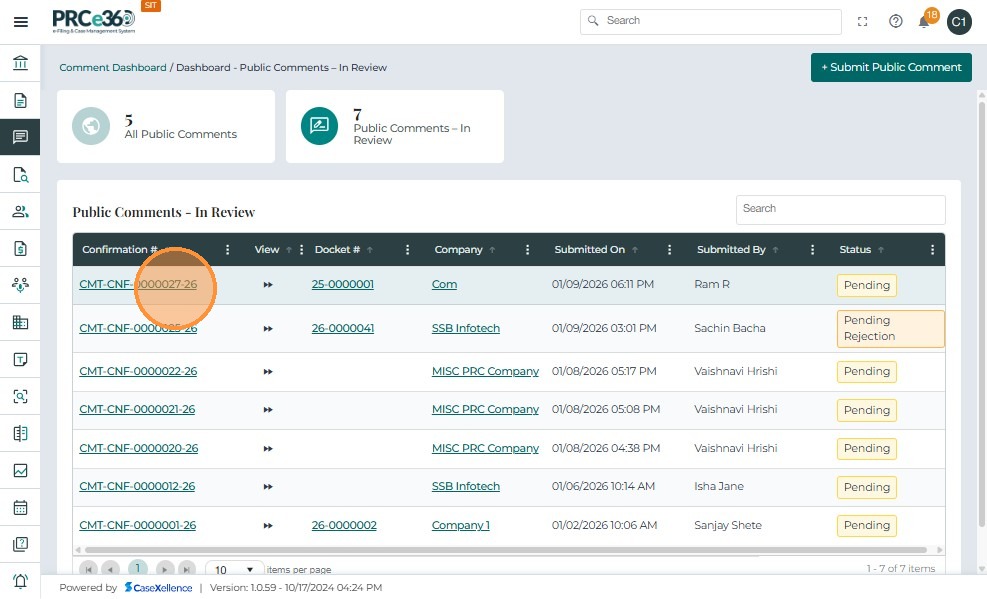
- Click on the confirmation number to review the public comment.
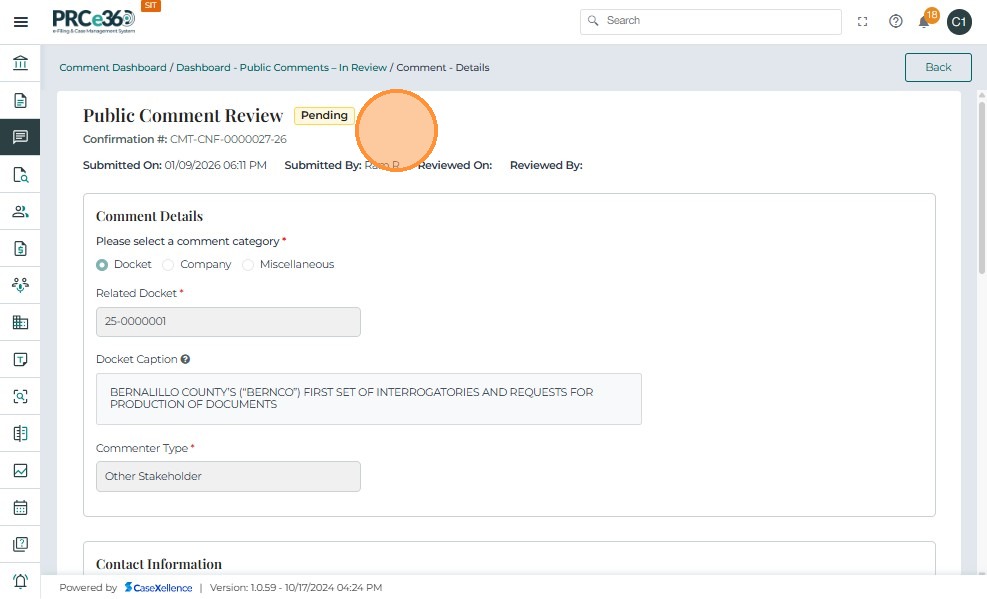
- Here the status of the public comment is Pending.
- Review all the fields of the public comment that were submitted by another user.
-
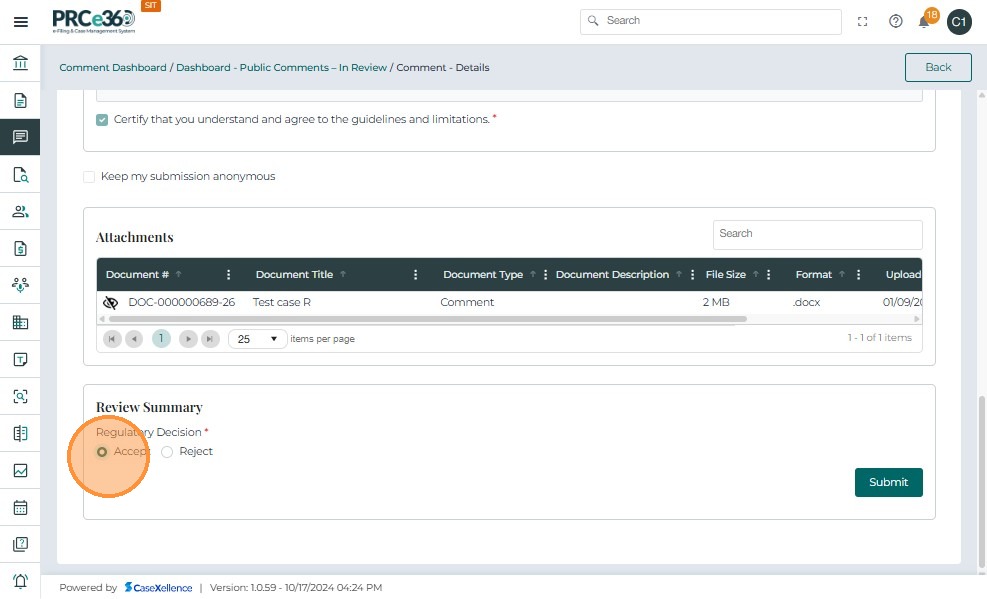
Click on Accept to accept the public comment.
-
If the user accepts here, the public comment status will be Accepted
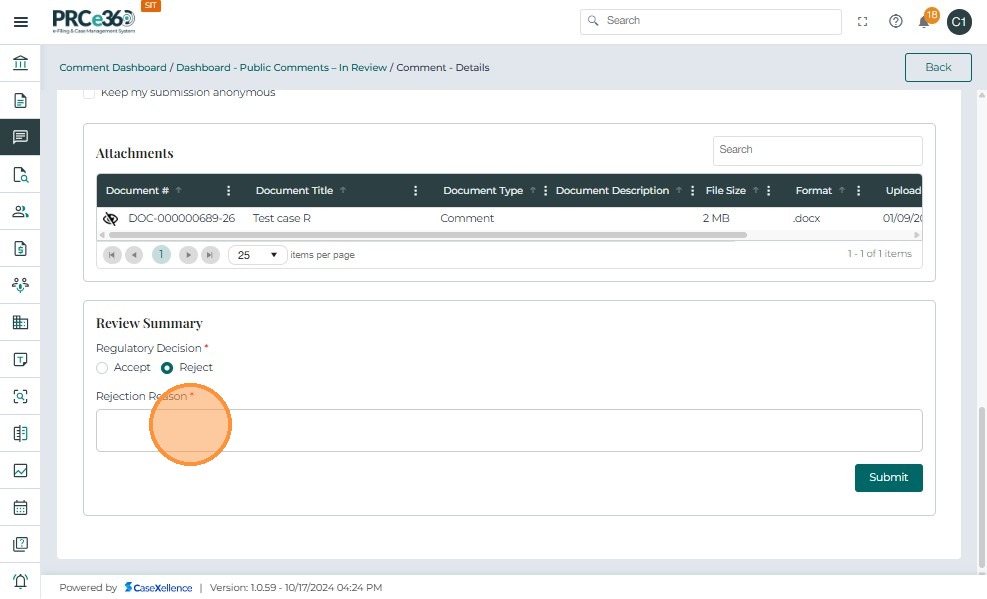
- Click on Reject to reject the public comment.
- The user must provide the reason for rejection.
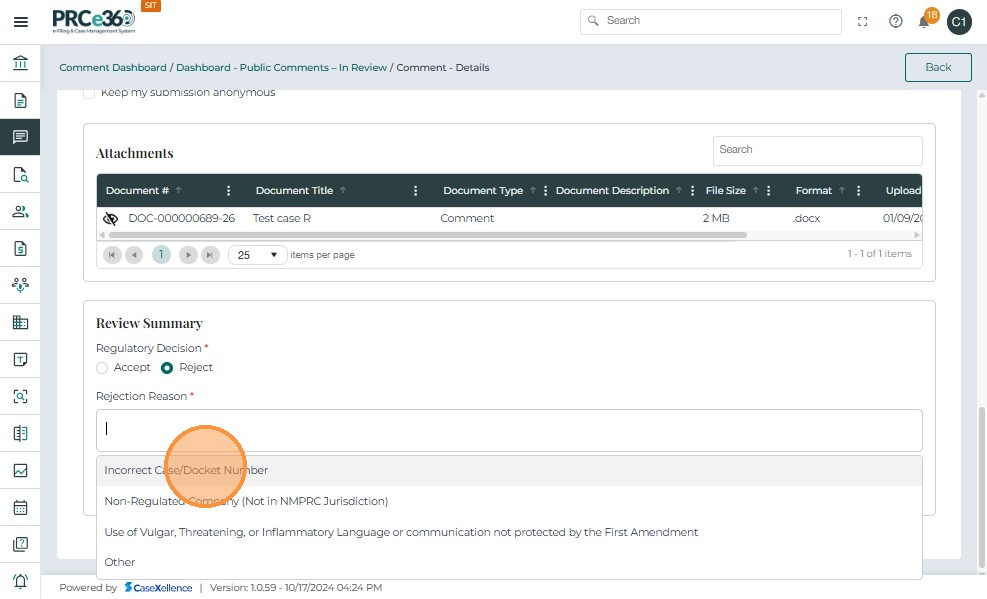
- Once reviewed, click on Submit.
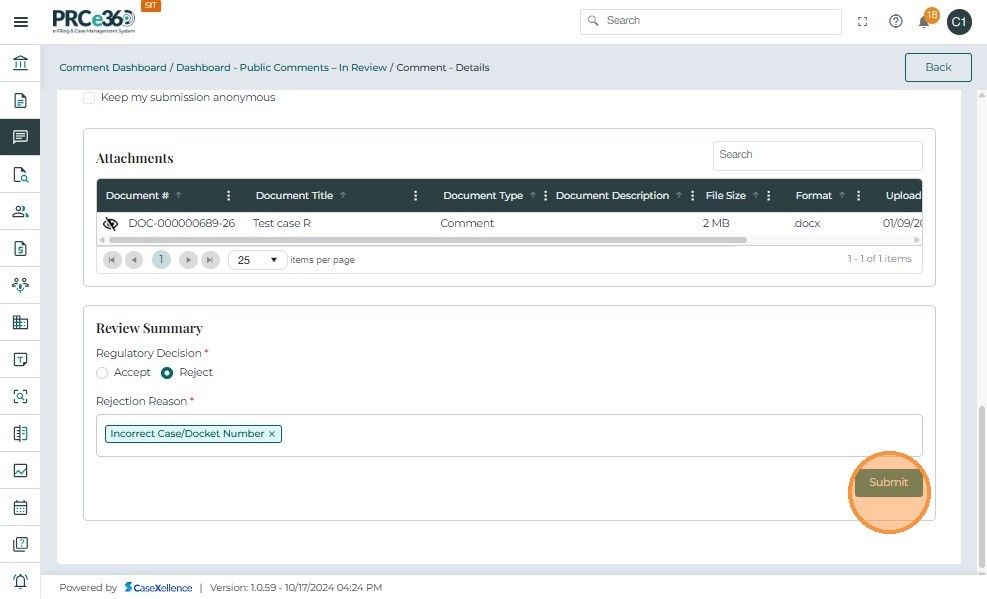
- The status will become Pending Rejection
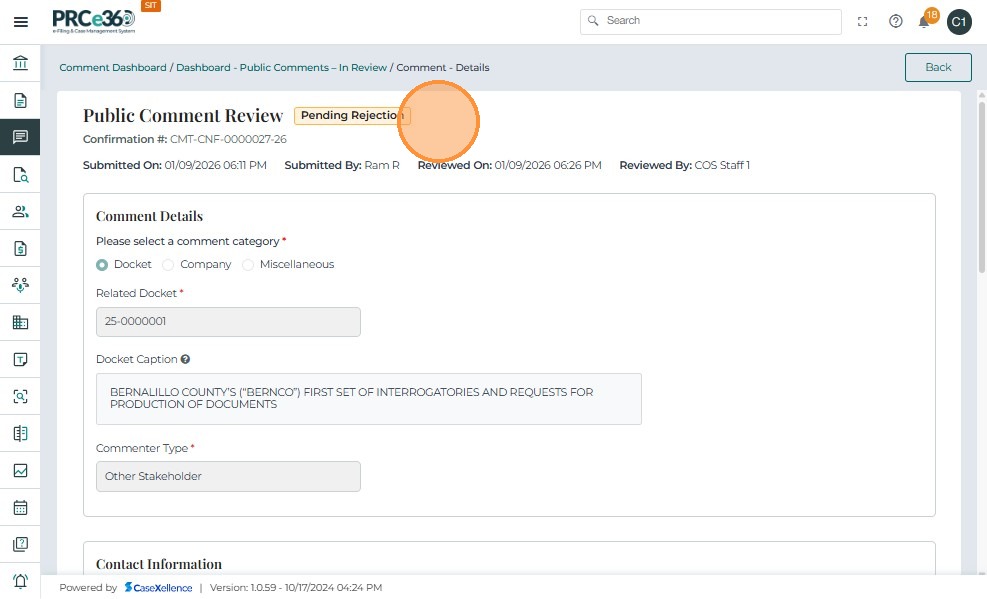
- The public comment will now go to the Legal Supervisor for further review.
Legal Supervisor
- Log in as a Legal Supervisor user.
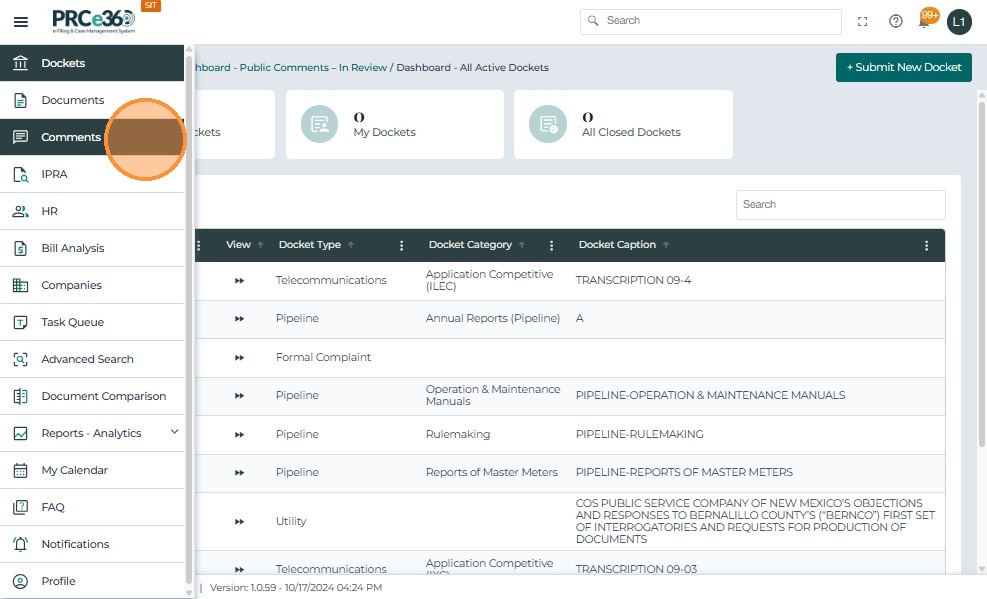
- Navigate to Comments Dashboard
- In the Public Comments - In Review queue, the public comments that are to be reviewed will be listed.
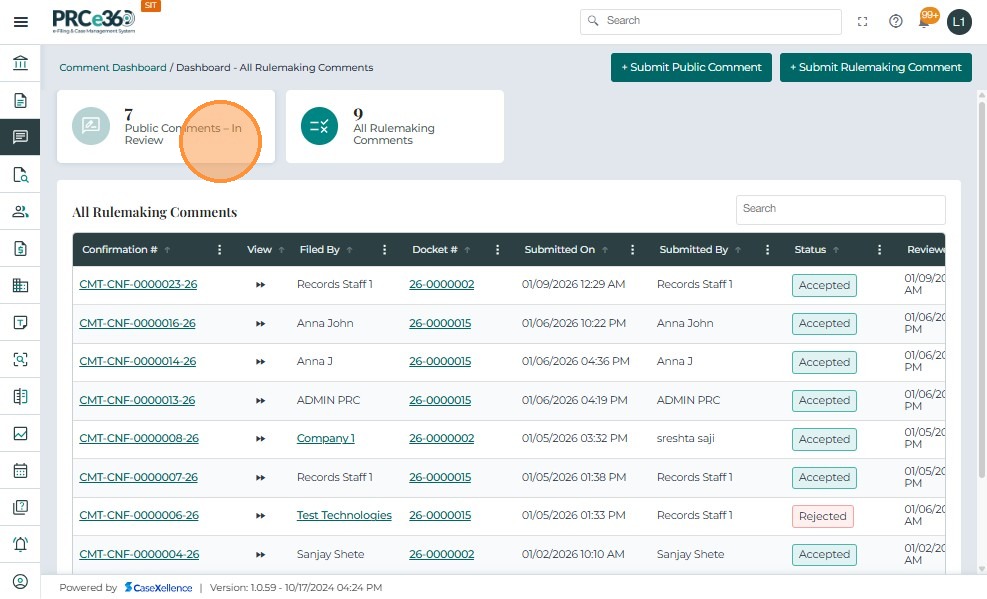
- Click on the Confirmation # to view the details of the public comment.
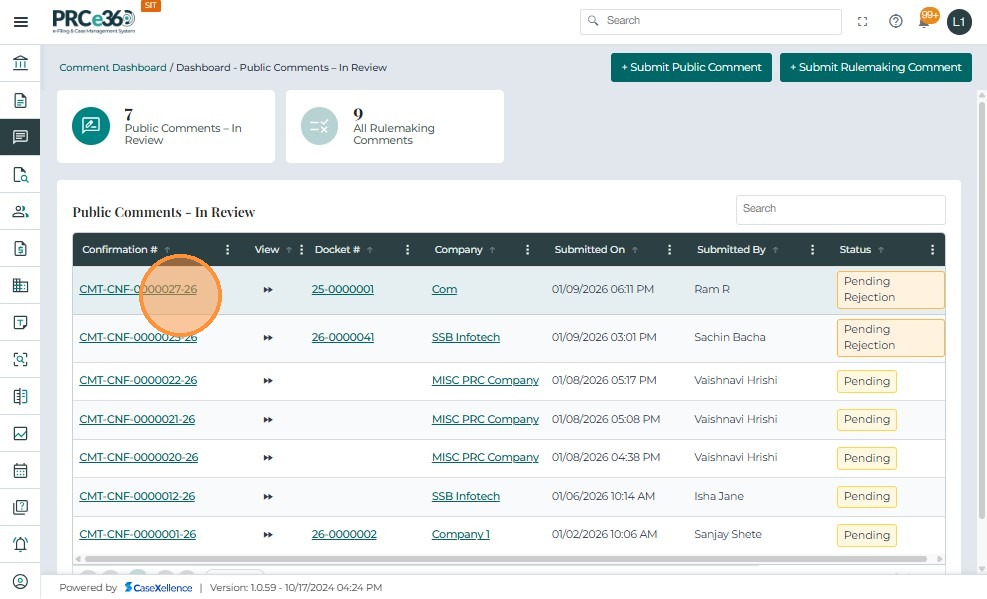
- The status is shown as Pending Rejection.
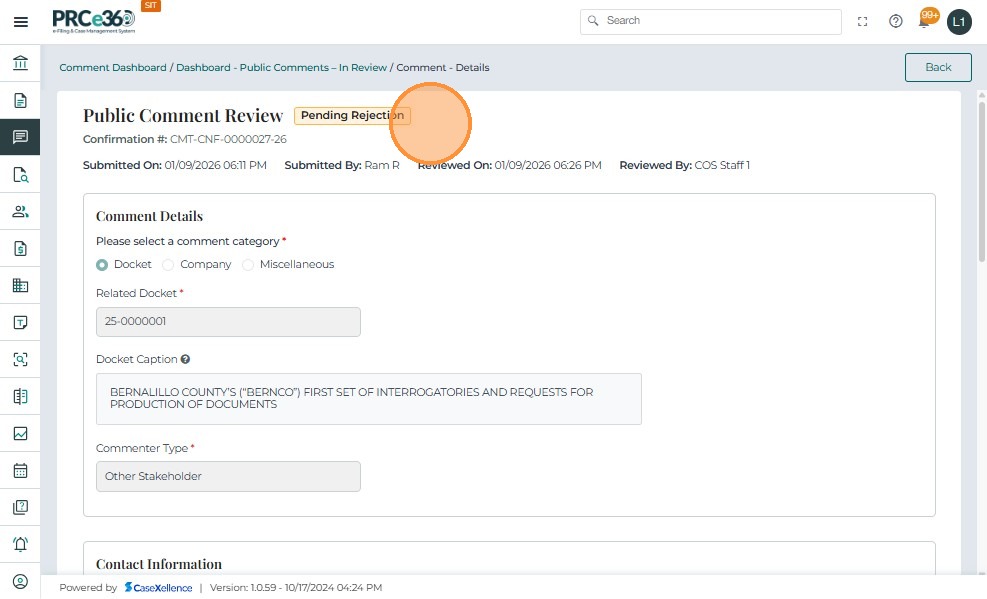
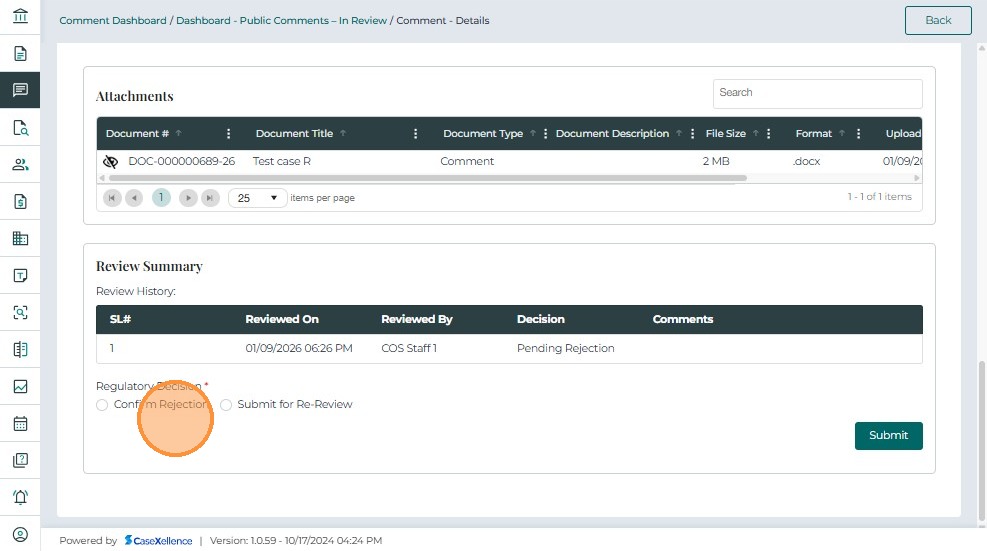
- To confirm the rejection as per the COS PIO user’s decision, click on the Confirm Rejection button.
- Give the reason for confirming the rejection.
-
The decision history will be shown in the Review Summary grid.
-
This grid includes columns like:
- Reviewed On - The date and time when the comment was reviewed
- Reviewed By - The name of the person or role that reviewed the comment previously
- Decision - The decision taken by the previous user
- Comments - The comments given by the previous user for the decision made
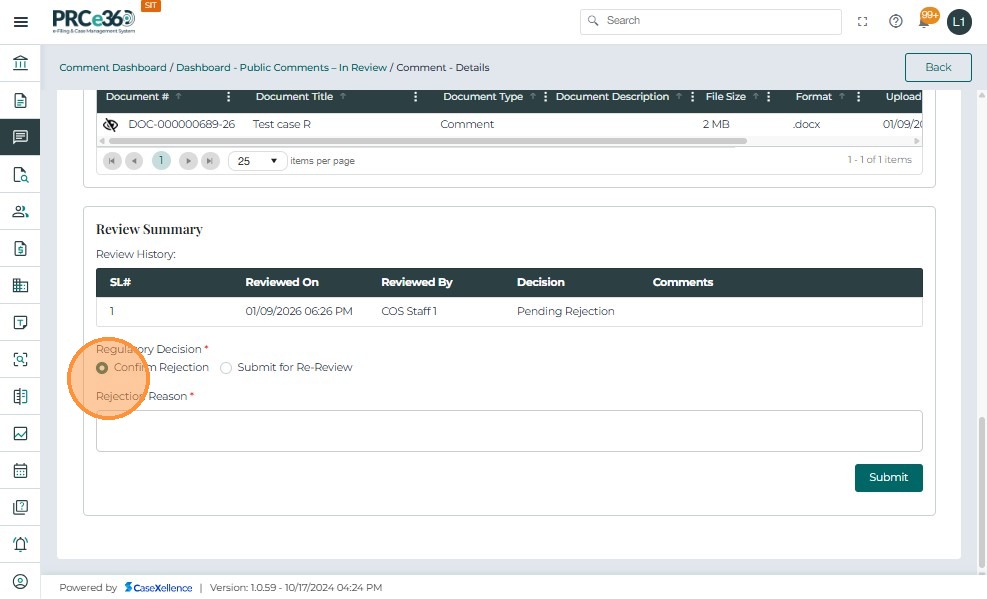
- Click on Submit for Re-review to send it for another round of review
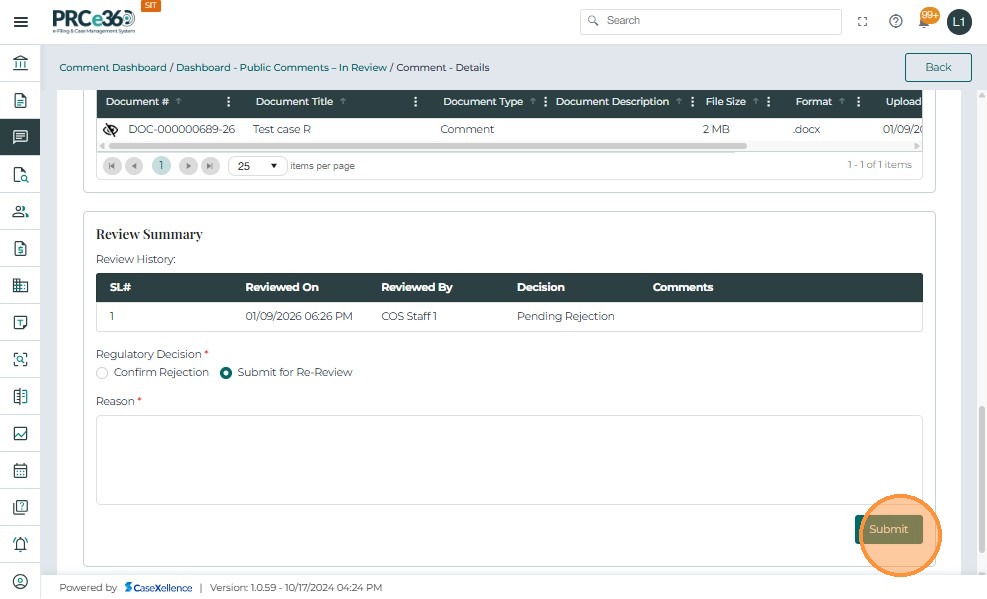
- Provide the reason for submitting for re-review.
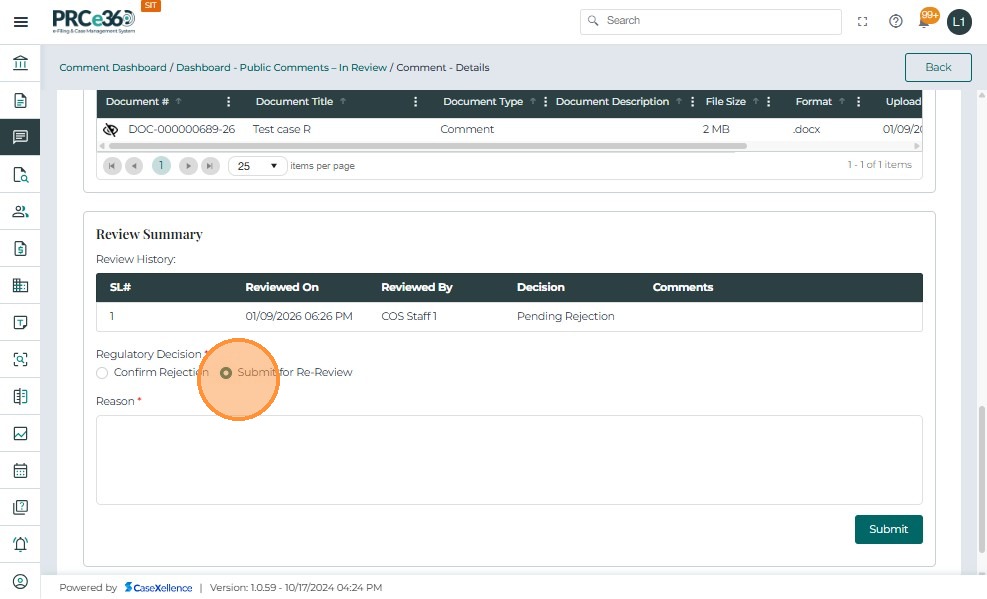
-
Click Submit once reviewed.
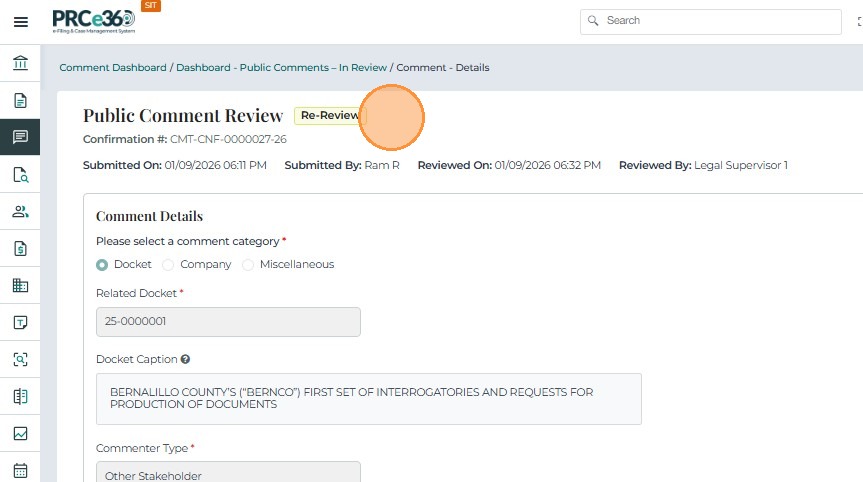
- The status will be shown as Re Review
- Both COS PIO user and Legal Supervisor will have the option to either Accept or Reject the public comment
- This will be considered the final decision
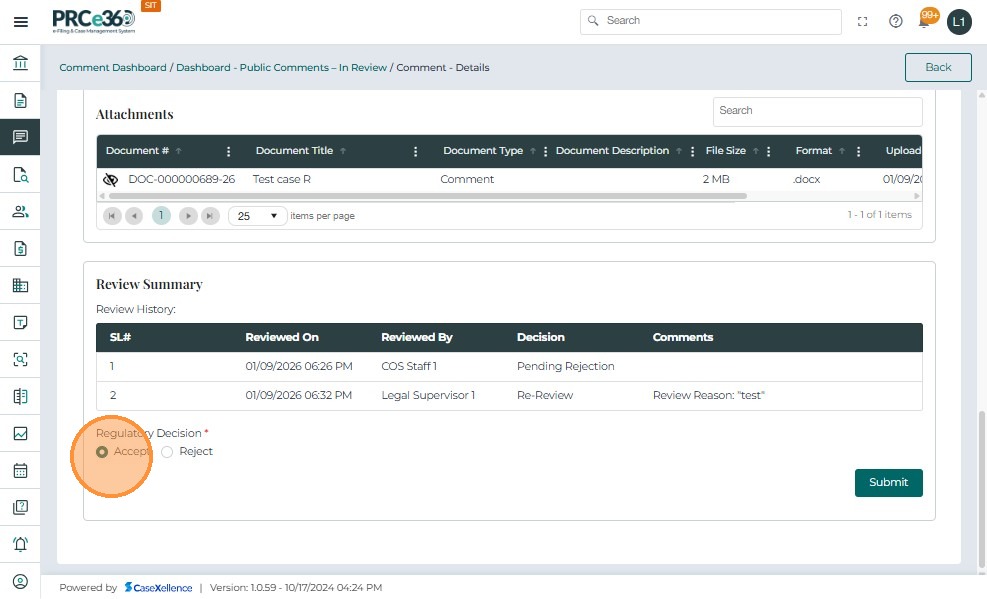
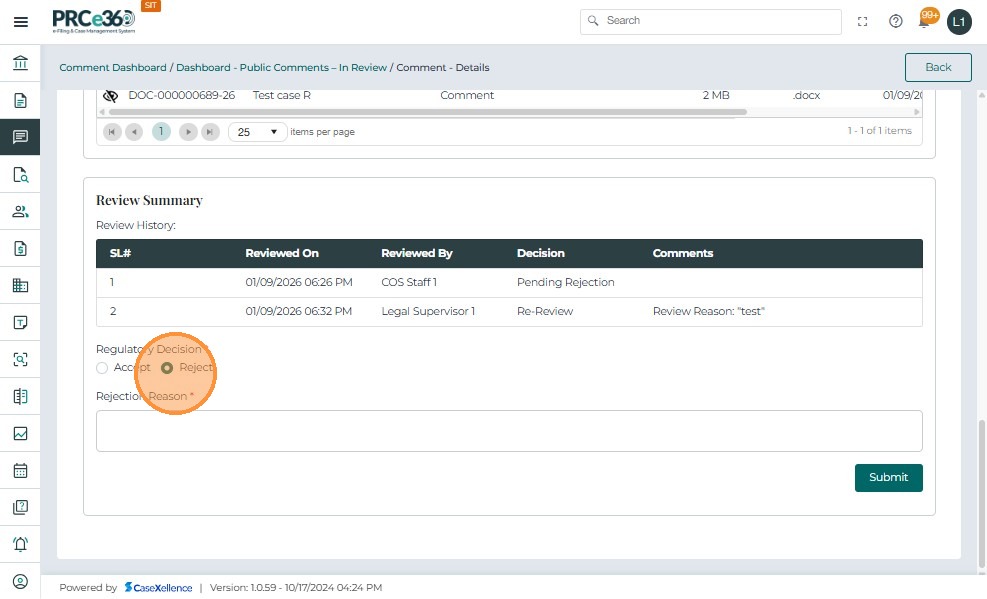
- Click **Submit once reviewed
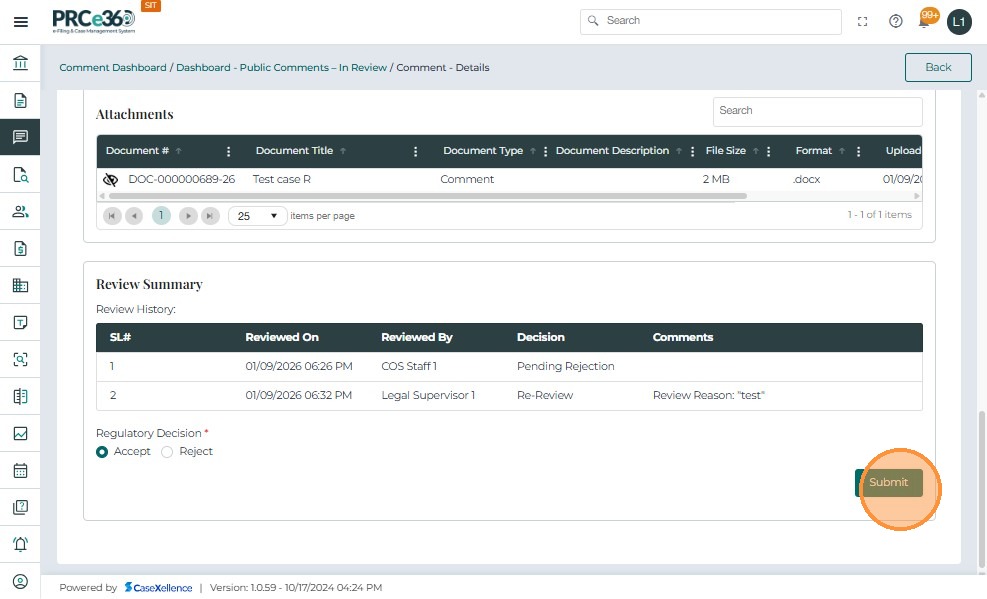
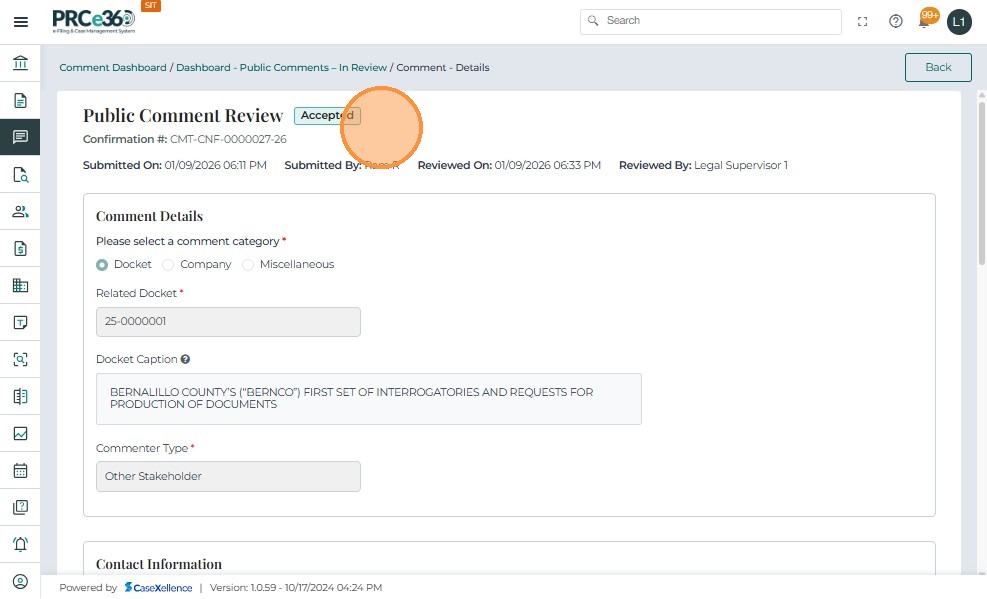
- The public comment status wll then become Accepted or Rejected
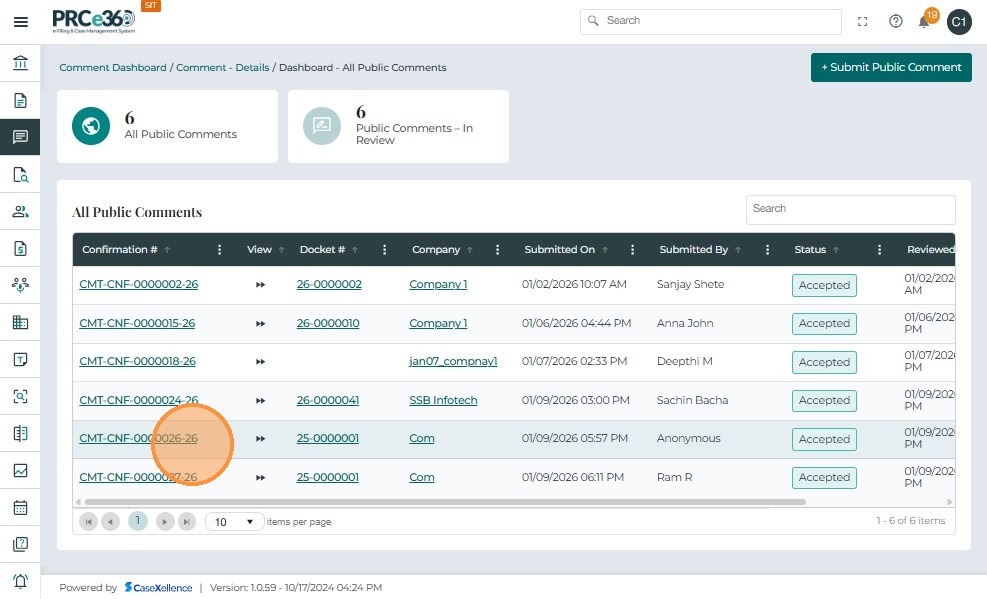
- Now, in the All Public Comments queue, the public comments that have been Accepted or Rejected will be listed with their status.
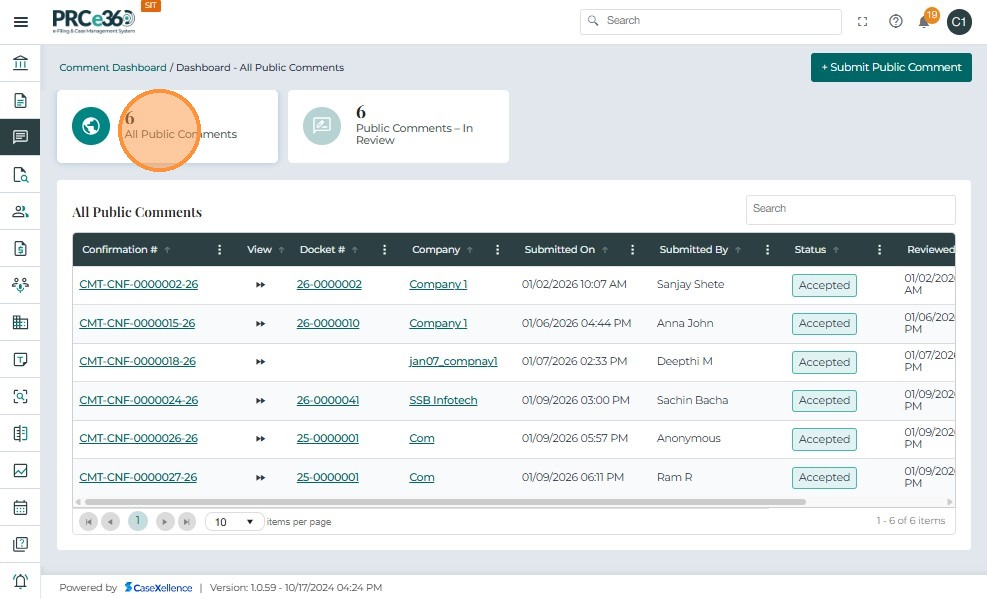
- The grid includes columns like:
-
Confirmation # – A unique confirmation number assigned to the comment
-
Comment Type – The type of comment
-
Submitted On – The date and time when the comment was submitted.
-
Submitted By – The person or role that created the comment.
-
Status – Status of this comment (Accepted/Rejected)
-
Reviewed On – The date and time when this comment was reviewed.
-
Reviewed By – The name of the person or role that reviewed the comment.
-
Actions – Provides a dropdown menu with available management options for the task.
-
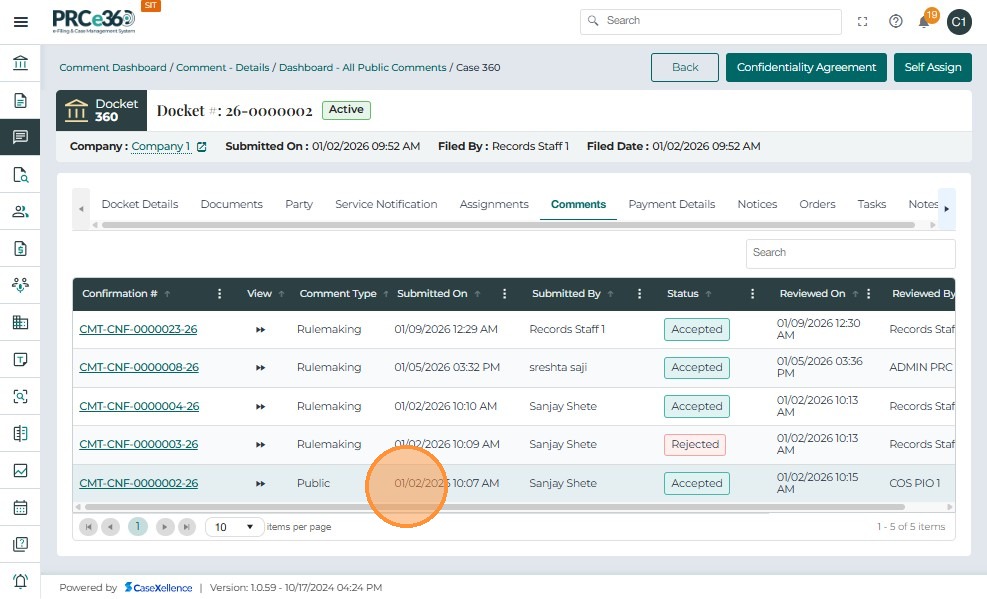
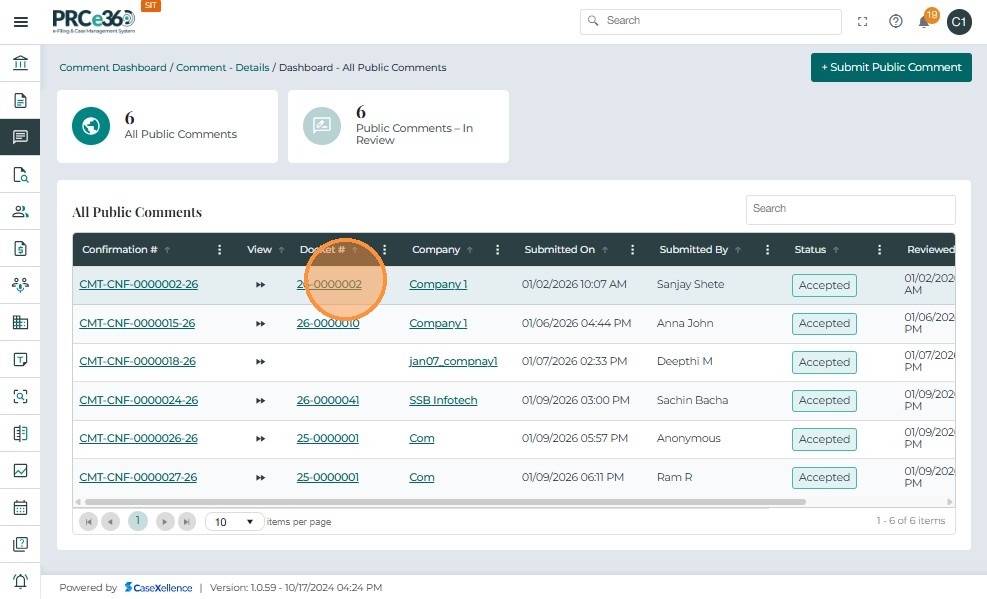
- Click on the docket number to view the public comment
- The Comments tab will show all public comments related to the case
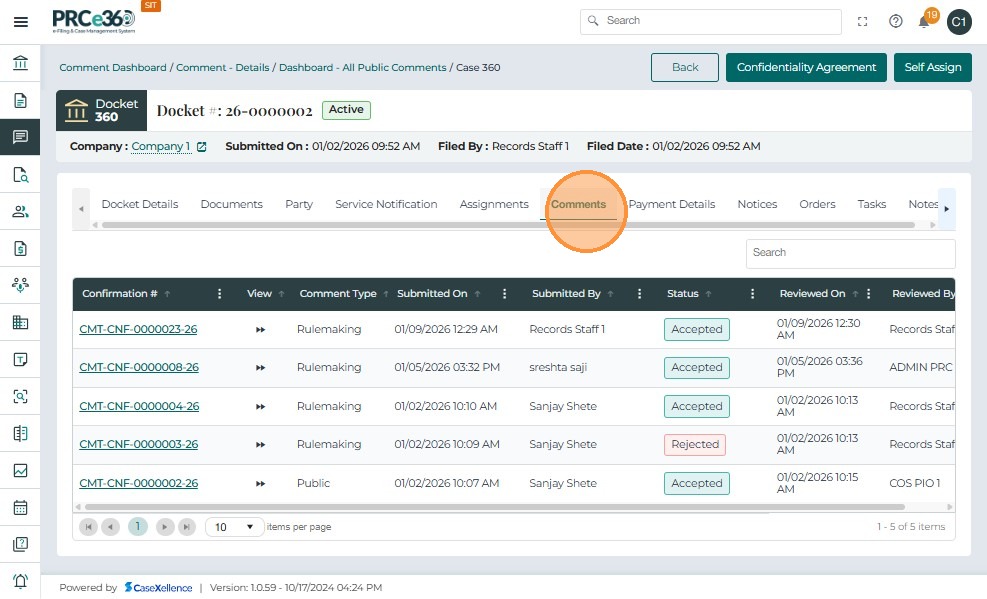
- Click the confirmation number to view the details of the public comment